PowerShell for Packet Loss Detection

Today I receive a message from a good friend in Singapore, asking for help on PowerShell. Well, is glad that someone comes to me asking for help on PowerShell. Sorry I could get a little bit excited whenever question on PowerShell. There are many ways to achieve this though, so don’t limit yourself. It is kind of an experimental situation with him on this packet loss detection too. This post is kind of to give you a hint of how you could create your own packet loss detection.

So this is mine but you can modify it,

  1. This is a constant IP address value (you can include hostname)
    • Try{
          #Stop progress if failure to achieve a successful return
          Test-Connection <IP address> -ErrorAction Stop
      }
      
      Catch{
          #Return an error message
          $ErrorMessage = $_.Exception.Message
          Write-Host $ErrorMessage
      }
  2. You can have it in data entry form too
    • #Data Entry of IP address that you wish to test connection, 
      #if connection successful there will be test conenction result 4 times (by default)
      $IPAddress=Read-Host "IP address"
      
      Try{
          #Stop progress if failure to achieve a successful return
          Test-Connection $IPAddress -ErrorAction Stop
      }
      
      Catch{
          #Return an error message
          $ErrorMessage = $_.Exception.Message
          Write-Host $ErrorMessage
      }
    • Testing how are the result and behavior is. I disconnected from the Internet and an error message return instantly.

    • ps01_LI (3).jpg
  3. For repetitive capability or 24×7, you got to be careful the resource exhaustion. Please check your task manager what is the performance when the PowerShell is running.
  4. You can even have it to return to send an email using the Send-MailMessage command, you can use default SMTP or your organization SMTP Server (this is a bit tricky)
    • Send-MailMessage -From 'User01 <user01@fabrikam.com>' -To 'User02 <user02@fabrikam.com>', 'User03 <user03@fabrikam.com>' -Subject 'Sending the Attachment' -Body "Forgot to send the attachment. Sending now." -Attachments .\data.csv -Priority High -DeliveryNotificationOption OnSuccess, OnFailure -SmtpServer 'smtp.fabrikam.com'

Good luck with your testing! 

References:

  1. https://docs.microsoft.com/en-us/powershell/module/microsoft.powershell.utility/send-mailmessage?view=powershell-6

Troubleshoot Group Policy Object showing Extra Registry Settings

When your environment migrates from legacy or lower version of Windows Server to a newer version. Example, from Windows Server 2008 to Windows Server 2016.  You will experience this. This is why I am writing this post.

I notice when I launch the Group Policy Management and direct to one of the Group Policy Object > Settings Tab > Show all and saw a part says “Extra Registry Settings“. I open up the Edit, trying to locate that part but failed to do so. What I did is I research on the browser, checking whether has anyone experience it and what are the solutions to it.

There is a message display inside the “Extra Registry Settings” but not helpful in getting any information in the browser. The message is “Display names for some settings cannot be found. You might be able to resolve this issue by updating the .ADM files used by Group Policy Management.”


gpo01.PNG
Example, of the part


Thank god that PowerShell can remove this registry using the Remove-GPRegistryValue Command. You may refer to the reference below too.

First I run the GET command just to make sure the registry value is valid;

#This command retrieve information of an extra registry of the
Get-GPRegistryValue -Name "<GPO Name>" -Key "HKLM\Software\Policies\Microsoft\Windows\CurrentVersion\Internet Settings\"

#If result is valid then move on to REMOVE command, note that sensitivity on the Key Path Value "\" at the end must not be included
Remove-GPRegistryValue -Name "<GPO Name>"  -Key "HKLM\Software\Policies\Microsoft\Windows\CurrentVersion\Internet Settings\" -ValueName "<Registry Value Name>"

#A result will be shown after the REMOVE command executed, result contain GPO Name, Owner, creation time and modification time


Reference:

  1. https://sdmsoftware.com/group-policy-blog/tips-tricks/removing-extra-registry-settings-from-gpos/
  2. https://deploywindows.com/2017/10/12/extra-registry-settings-need-access-to-old-group-policy-settings/


PowerShell with Windows Forms

On a Friday night, after my work, I was wondering (finally some self-daydream) is there a way that PowerShell can create application-like. All I needed to get the theory and functionality working, beauty is later.

I texted my buddy in Singapore (.Net Dev) first then Europe (PowerShell master) and asked them, both of them gave me different platform answers but a similar answer was using Windows Form. The surprising thing was PowerShell can do it, I was like “Hmm…a platform the I am familiar with, let’s give that a try.”. Visual Studio also has Windows Form but I prefer to start off the platform that I familiarize first, you know, give myself a base to kick-start. Well, that does not mean that I won’t give Visual Studio a try.
Thanks very much for these 2 Masters!

So this is why I am writing this post, after gathering enough information from these 2 buddies (Masters), I start my journey towards Windows Form. Well, for a beginner is usually start off with “Hello world” statement. I try out the first reference link, this is what I get the outcome;

  • A simple pop out of “Hello World with an OK button”
  • Behavior: A Message pop up and selecting OK will returning a result

ps01.PNG

A simple pop up gets me excited to explore more of this Windows Form namespace.

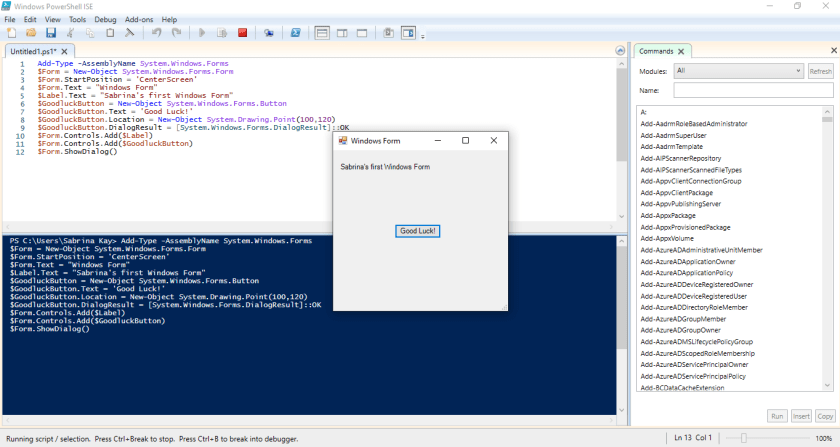
So to gain further understanding, I tried to type something else, I am trying to get a behavior where I click on the “Good Luck!” button then a cute cat or Pikachu meme will pop out, not sure whether it is possible. Oh well, more exploring to do.

ps02.PNG

#A form with a simple display at the Center of the Screen and a button
Add-Type -AssemblyName System.Windows.Forms
$Form = New-Object System.Windows.Forms.Form
$Form.StartPosition = 'CenterScreen'

#Attributes or Controls for your form
$Form.Text = "Windows Form"
$Label.Text = "Sabrina's first Windows Form"
$GoodluckButton = New-Object System.Windows.Forms.Button
$GoodluckButton.Text = 'Good Luck!'
$GoodluckButton.Location = New-Object System.Drawing.Point(100,120)
$GoodluckButton.DialogResult = [System.Windows.Forms.DialogResult]::OK

#What are the controls to be added into the form
$Form.Controls.Add($Label)
$Form.Controls.Add($GoodluckButton)

#The result
$Form.ShowDialog()

References:

  1. https://www.powershellmagazine.com/2015/04/09/pstip-use-windows-forms-to-generate-gui-messagebox/

PowerPoint: Subtitle Presentation

So what brings me into writing this blog, I know that this blog is out of my norm, but I have been using PowerPoint Subtitle function for quite some time, I just didn’t like it until that day…

It is a late night and I was skyping with a friend in Singapore, he commented that my YouTube videos need subtitles because my voice is soft. Hence, I mention that I could make use of the PowerPoint because it provides subtitles function, he was surprised that PowerPoint has this capability. So we started screen sharing via Skype, I demonstrated him the subtitles function in PowerPoint and during that demonstration, I notice the “More Settings” at the subtitles. From the “More Settings” I gain the capability of adjusting my spoken language and the subtitles that I want it to show on my presentation slide.

It is interesting how we can learn from each other, just through a short Skype screen sharing. Hahaha. I myself seldom use personal Skype and I did not know that it has improved. This personal Skype experience is because of a friend in Singapore.

This feature really useful if you always perform screen recording, presentation or YouTube Videos for education.

The accuracy is surprisingly 98% when I meant its accuracy means the voice and slang detection and reflect it into the subtitle bar. Alright so let me show you how you could enable this!

How to Enable Subtitles in PowerPoint Presentation?

Below is a video;

  1. How to enable subtitles in PowerPoint?

PowerShell: Disable users from creating Office 365 Groups

Before things or infrastructure of your SharePoint Online, Exchange Online’s Office 365 Groups, and Microsoft Teams go uncontrollable, it is better to disable the freedom of creating Office 365 groups for users. You can only do this via PowerShell and this may take 24 hours or probably a few hours to take effect. Think about what is the best procedure for this.

*Note:

  • Requires PowerShell Module
  • Requires AzureAD Module
  • This doesn’t impact Global Administrators
  • Users got the freedom to create Office 365 groups from application or web platforms, such as Outlook, Yammer, SharePoint Online, Teams and many more.
  1. Open Windows PowerShell or Windows Azure AD PowerShell module
  2. Type the following command, to connect to Azure AD Services
    • Connect-MsolServices
  3. Enter your Global Administrator Credential
  4. Type this command to get your company information
    • Get-MsolCompanyInformation
  5. Is will show you “UsersPermissionToCreateGroupsEnabled” is set to True
    • capture.png
  6. Type this following command to turn off the freedom for users to create Office 365 groups
    • Set-MsolCompanySettings -UsersPermissionToCreateGroupsEnabled $False
  7. This will then change the “UsersPermissionToCreateGroupsEnabled” to False
  8. Wait for 24 hours to take effect and try to test out whether it works from the user side.

Identify Azure Active Directory Connect in the Environment (Sync Service)

Ever encounter in an environment where IT does not have visibility of the previous IT actions? Frustrating and irritating right? They were unsure whether is sync service running or not or exist or not.

At first, you will go to portal.office.com to find the DirSync Status, but this is where the funny part, there is a DirSync Management and it has resulted or hint that this Office 365 had Synchronization Service. As you can see below, there is no service account and no last directory sync.

aadc01

Next, I went into their Domain controller > Active Directory Users and Computers > Users OU. I was able to locate 2 Synchronize’s Service accounts, that are not disabled. To locate their location (server), double click on the account to launch the properties. At the description attribute or value, you can identify the location (server name).

  • 1 Service account with no indication of this sync service’s server location in the Description Information
    • Able to locate it, it was inside a Window Server 2008 R2
  • 1 Service account with an indication of its location (inside one of the Domain controller, Windows Server 2012 R2)

I access both of these servers, able to capture

  • Sync tool exist
  • Sync service is running (inside the services.msc)
  • No Operation of sync
  • No connectors in the sync service to be found
  • Windows Server 2008 R2 running Microsoft Online Services Directory Synchronize Service version 2013 year
  • Window Server 2012 R2 running Windows Azure Active Directory Service tool version 2014 year

New version Sync tool naming is “Azure Active Directory Sync Service”.

Another round to proof your findings is to run the PowerShell command to get all attributes of the user list in Active Directory on-premises and Azure Active Directory user list. (If you prefer to filter only a few attributes, then it is up to you.)

For Active Directory

#Run this command in domain controller's windows PowerShell

Get-ADUser -Properties * -Filter * | Export-Csv "filename.csv"

Get one of the oldest (before the year of 2013) and an active employee’s objectGUID.

For Azure Active Directory

Requirements:

  1. .NET Framework installed (latest)
  2. Microsoft  Azure Active Directory Module or PowerShell
  3. Windows PowerShell
#Connect to Azure AD service

Connect-MsolService

#Key in your Global admin credential

#Run this get command to get all user list with its attribute

Get-MsolUser | Export-Csv "filename.csv"

Next, you find the same oldest employee’s immutable id value, if there is value means this environment had sync service running before. You could compare the value that is valid and convert the objectGUID to an immutable ID or the other way around, using this converter.

After locating all this, now you can plan your clean up and recommendations. This may take a longer process, due to you need matching and creation.


Azure Information Protection: Install Azure Information Protection Application for Windows Client

If your Windows client is a joined to the domain and has limited privilege, to download software or applications. Thus, requirements a local administrator or an administrator account to proceed with these changes.

Requirements

  1. Supported Windows
  2. Supported Office Application
  3. The Internet
  4. Browers

Step-by-Step

  1. Browse to Microsoft Download
  2. Once you have finish download, double click on the installer
    • az02.png
  3. Select “I agree”
    • az01
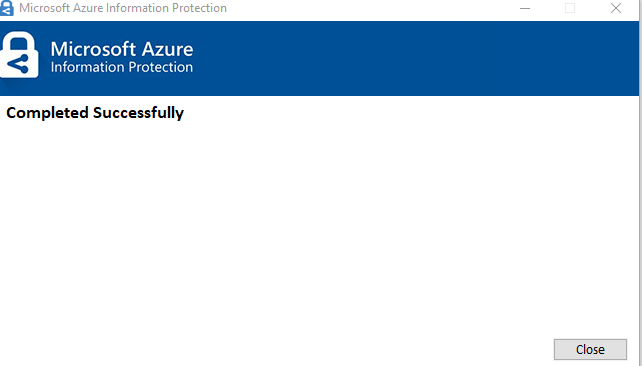
  4. Select “close”, once completed
    • az03.png
    • az04.png
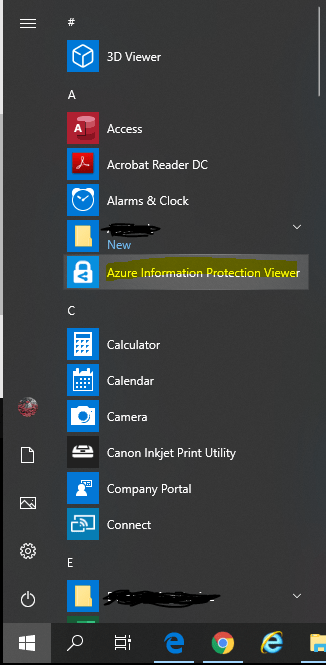
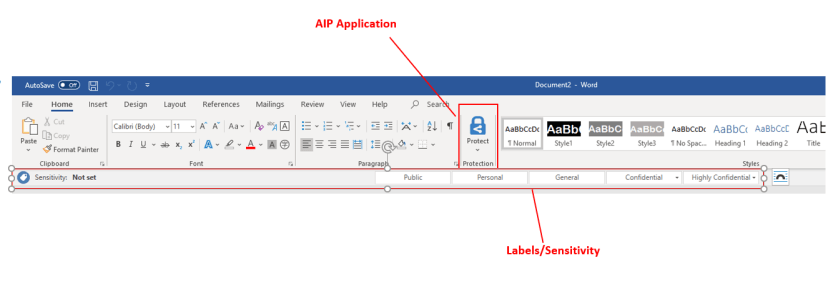
  5. You will find the Azure Information Protection Viewer application shown and your office application has the Azure Information Protection labels shown too
  6. Select Start or Windows button
    • az05.PNG


There is another way to have this installed in the client’s device that is joined to the domain, which is through GPO (Group Policy Management).

Azure Information Protection: Overview Default labels on Office application

I am having an Office ProPlus application, using Windows 10 Pro. Azure Information Protection stands for AIP. I will use AIP term throughout this post. Making sure AIP is enabled at the Global administrator side.

If you are wondering “Hey, I do not want my users to be having the privileged to uninstall AIP application from their devices”, well I will explain more on the next post 🙂 !

Requirements

  1.  An office 365 account
  2. Supporting Office 365 License
  3. Supporting Windows Client/Server
  4. Azure Information Protection Application

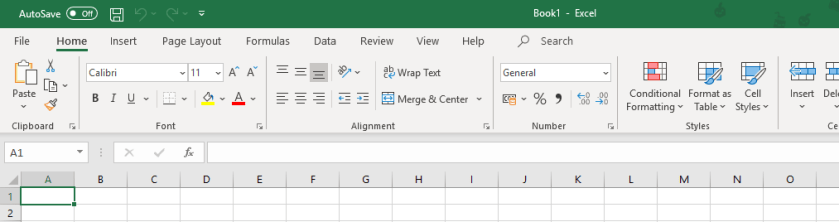
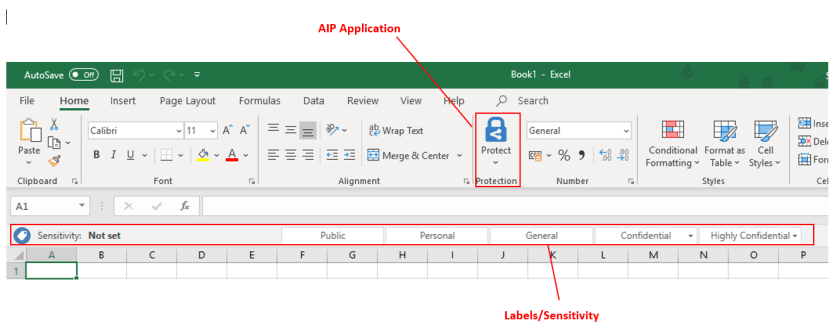
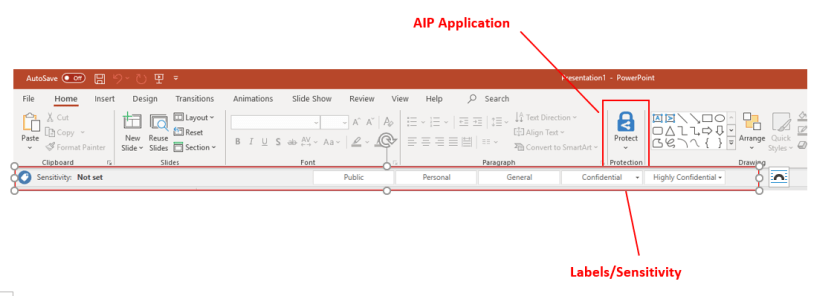
Just to show you how the labels look like for each of the Office application (Outlook, Word, PowerPoint, and Excel),

Outlook Without AIP

o36501

Outlook with AIP

o36502.png


Word without AIP

o36506.PNG

Word with AIP

o36503


Excel without AIP

o36508

Excel with AIP

o36505


PowerPoint without AIP

o36507

PowerPoint with AIP

o36504


My first experience as a speaker at Insider Dev Tour, Kuala Lumpur, Malaysia 2019!

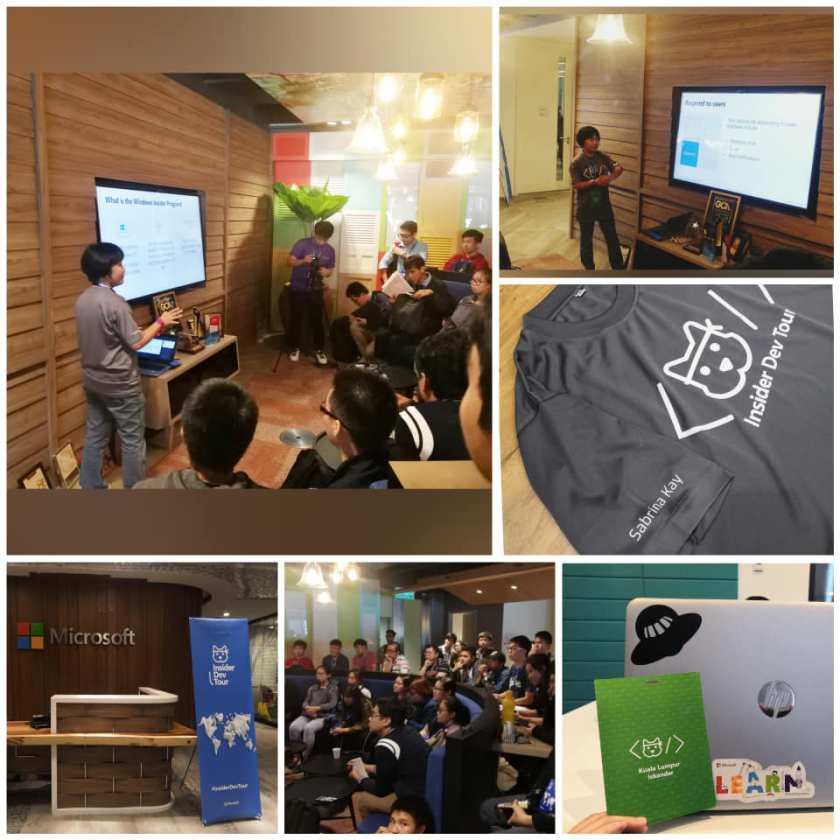
Being the youngest and the only female speaker at Insider Dev Tour KL, it was my pleasure to stand out and present the Windows Insider Program to the audience. Met new speakers during the Insider Dev Tour, KL, awesome, funny, friendly, smart and great to chat with! I am glad to meet them all, glad that they gave me this opportunity too! Thanks very much!

Our audience is mostly university students and corporate. It was a surprise to see the amount of fresh and young developers devoted their Saturday time to join Insider Dev Tour, to learn and explore the updates and capabilities that can help them with. They were all super engaging, super curious and super active with games, questions, and activities! {Yes! This is the generation! This is what the future needs! Fresh, young and engaging developers!}

The response from my audience, they were quite surprised when they heard about my age is very close to them. They started asking me how and why I chose this path. My reply “Passion, Strong goals, Devoted, and showing and sharing my skillsets to help others. I like new technology, especially customization!”

64464445_2484366271584103_5182180305242423296_o

64719313_2498783916809005_7322421921121828864_o
I’m the speaker for Windows Insider Program, my main impact is to get the audience to join the Windows Insider Program and form their own community to share and grow their apps with Windows
65068787_2498783953475668_4456554694503825408_o
Me explaining what is the Windows Insider Program
64654831_2499324146754982_4141292807803371520_n
Fresh and young developers devoted their time to join Insider Dev Tour to learn, upskill, explore and also receive gifts from activities and games
65054404_2498784053475658_6195116176993943552_o
Meet ninja cat and my laptop cats
65320247_2500331756654221_3392508497181540352_o
Stickers and gifts
64668461_2499324086754988_1908249142069559296_n
Summary of my experience as a speaker at Insider Dev Tour, KL


Reference:

https://developer.microsoft.com/en-us/windows/campaigns/my-kualalumpur


The Factor of Corrupted Domain Controller, Windows Server 2016

Having a corrupted domain controller is highly troublesome and is irritating. It was my first time to experience an environment with a corrupted domain controller. Luckily, it wasn’t the master domain controller that is corrupted.

Before jumping into conclusion by blaming the domain controller is the cause. Let’s check what are the symptoms and what could be the possible cause. Anything that is related to the domain controller will get affected.

What are the symptoms that you will experience?

  1. Delay synchronization between other domain controllers
  2. Unexpected broke down of synchronization between other domain controllers
  3. Inconsistent reading of synchronization
  4. Loss of locating the master domain controller
  5. Time-sync delay
  6. Users unable to log in to Office 365 after password reset
  7. Newly created Exchange Hybrid users are not reflecting
  8. Exchange Hybrid failure to connect
  9. Unexpected slow performance
  10. Unexpected network detection failure


The factor of the causes?

When you have a corrupted domain controller, you really have drawn the layers to investigate.

  1. Configuration/Settings of the domain controller
  2. System Information and configuration on the server
  3. Operating system
  4. Host
  5. Virtual appliance
  6. Network (firewall or infrastructure)
  7. Storage
  8. Hardware


So it is best to analyze what is the possible cause of this and how to avoid it in the future. Logs are the friends you need.