How to export Online Archived Calendar to a CSV file from Outlook App 2016 and above?

Heyyy dudes and ladies! So I was stressing out this problem today and I wanted to share the resolution for this, as you know by now you cant find any resolution much now on the Web for this case.

Firstly, you could only view your online archived calendar from Outlook App. By default you couldn’t view it on Outlook Web.
*Note:
Please try not to re-import the online archived to your current calendar, imagine the amount of reminders it will prompt you. Yes, I did that test on myself, and I am getting a re-prompt of reminders of my 1 year calendar . hahaha. I’m such an idiot!

To view it for your Outlook Web;

  1. At your Outlook App > File > Save Calendar
  2. Choose your directory/location to save your calendar
  3. Modify the options to save full details or whatever you wish
  4. Rename it and click save
  5. Go to Office 365 portal > Calendar
  6. Add/Create a new calendar > Give it a Name
  7. Import calendar > Select from a file > Browse for the save calendar file
  8. Now you got to view your online archived calendar in Outlook Web

To save your online archived and entire current calendar to a CSV file;

  1. At your Outlook App > File > Save Calendar
  2. Choose your directory/location to save your calendar
  3. Modify the options to save full details or whatever you wish
  4. Rename it and click save
  5. Locate your saved calendar file and double click it to open at your Outlook App
  6. At your Outlook App > File > Open & Export > Import/ Export
  7. Then it will prompt you > Export to a file > Select the saved calendar > next all the way
  8. If there is a reoccurrence prompt that is asking to set a date range, just set your prefer date range.
  9. Last is finish, now you have a list of your all meetings, based on the date range into a CSV file.

Office 365: Delete users the 2019 way

Today I discover something new, now office 365 given more details to administrators to delete a user.  Before direct execute to delete the user, administrators are given the few choices on how they can delete this user.


Let’s see what are the choices;

Capture

I have a resource account that I wish to delete,  when I execute the delete, it direct me to a page to ask how should I delete it or what are the choices that I can do with delete user.

I find it pretty useful because I do not need to open up Exchange Online portal to alter the mailbox permission to another user or permission to the delete user’s OneDrive.

If there were delegation on this user account that you wish to delete you could see it just from this page, instead of open up Exchange Online Portal.

Pretty cool right?

Office 365: Disable Office 365 Group, the year 2019 way

Mockup-Banner2_0209

Yesterday, I discovered that Microsoft has change the way how to disable office 365 group creation from users. You may refer from this Microsoft Docs and it was last updated in September 2019. It seems that it requires a minimum license of Azure AD Premium Plan 1. You may find this plan in your M365 E3 license. Before this, this was the way on how to disable office 365 group creation from users.

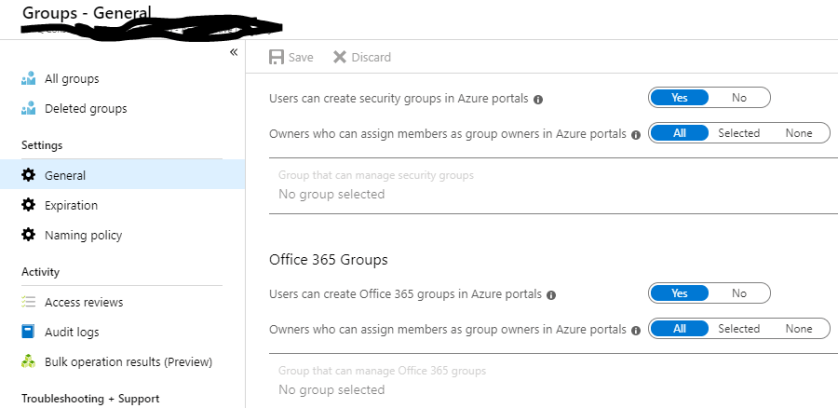
Looking through this blog post, on the Azure portal image, and comparing the current one has changed a lot. Now the group settings in the current Azure portal looks like this;

capture.png

As you can see above the Office 365 Groups settings, you can only control users from creating office 365 groups via Access Panel or Azure portals.

This is an Access Panel;

accesspanel

Why you should control Microsoft Teams creation?

Mockup-Banner2_0209.jpg

One of my customer informed me that why is his Office 365 Groups got big? I went in and help the customer to have a look at it together. I notice the email addresses are different and not normal looking kind. So I was thinking and checking the utilization dashboard and asked customer “Is Teams being launch?”. Answered “In the process”. Hurried that I had to run a disable Teams creation script and to prevent unnecessary Office 365 Groups created.

I saw Office 365 Groups with naming like “Jom Makan-Makan”, “I hate this Job”, “Boss Convo”, “What is Life” and etc.. This is why you should disable Teams creation capability to tenant wide, when you first deployed Office 365.

So what is the right way?

  1. Disable Teams creation tenant wide
  2. Create a security group
  3. Include only champions or Head of Departments as privileged owners to create Teams / Office 365 groups.

References:

  1. https://docs.microsoft.com/en-us/office365/admin/create-groups/manage-creation-of-groups?view=o365-worldwide

aOSKL 2019: My First Ever Workshop – Coming Soon

EFUkVdgUEAAmDba.jpg

I am glad to got accepted again for this aOSKL event, but there is a challenge to this, that is it is a workshop, 2 hours of workshop. Am I going to just read through slides? (That will be so boring….duhhh) What will my workshop consist? Well, are you interested to know? Come register and join my workshop! Seats are limited, first come first served.

“Sabrina Kay always hunger for challenges!”

Here is the link aOSKL 2019, to help you to find out more what this events has 🙂


PowerShell: Disable users from creating Office 365 Groups

Before things or infrastructure of your SharePoint Online, Exchange Online’s Office 365 Groups, and Microsoft Teams go uncontrollable, it is better to disable the freedom of creating Office 365 groups for users. You can only do this via PowerShell and this may take 24 hours or probably a few hours to take effect. Think about what is the best procedure for this.

*Note:

  • Requires PowerShell Module
  • Requires AzureAD Module
  • This doesn’t impact Global Administrators
  • Users got the freedom to create Office 365 groups from application or web platforms, such as Outlook, Yammer, SharePoint Online, Teams and many more.
  1. Open Windows PowerShell or Windows Azure AD PowerShell module
  2. Type the following command, to connect to Azure AD Services
    • Connect-MsolServices
  3. Enter your Global Administrator Credential
  4. Type this command to get your company information
    • Get-MsolCompanyInformation
  5. Is will show you “UsersPermissionToCreateGroupsEnabled” is set to True
    • capture.png
  6. Type this following command to turn off the freedom for users to create Office 365 groups
    • Set-MsolCompanySettings -UsersPermissionToCreateGroupsEnabled $False
  7. This will then change the “UsersPermissionToCreateGroupsEnabled” to False
  8. Wait for 24 hours to take effect and try to test out whether it works from the user side.

Identify Azure Active Directory Connect in the Environment (Sync Service)

Ever encounter in an environment where IT does not have visibility of the previous IT actions? Frustrating and irritating right? They were unsure whether is sync service running or not or exist or not.

At first, you will go to portal.office.com to find the DirSync Status, but this is where the funny part, there is a DirSync Management and it has resulted or hint that this Office 365 had Synchronization Service. As you can see below, there is no service account and no last directory sync.

aadc01

Next, I went into their Domain controller > Active Directory Users and Computers > Users OU. I was able to locate 2 Synchronize’s Service accounts, that are not disabled. To locate their location (server), double click on the account to launch the properties. At the description attribute or value, you can identify the location (server name).

  • 1 Service account with no indication of this sync service’s server location in the Description Information
    • Able to locate it, it was inside a Window Server 2008 R2
  • 1 Service account with an indication of its location (inside one of the Domain controller, Windows Server 2012 R2)

I access both of these servers, able to capture

  • Sync tool exist
  • Sync service is running (inside the services.msc)
  • No Operation of sync
  • No connectors in the sync service to be found
  • Windows Server 2008 R2 running Microsoft Online Services Directory Synchronize Service version 2013 year
  • Window Server 2012 R2 running Windows Azure Active Directory Service tool version 2014 year

New version Sync tool naming is “Azure Active Directory Sync Service”.

Another round to proof your findings is to run the PowerShell command to get all attributes of the user list in Active Directory on-premises and Azure Active Directory user list. (If you prefer to filter only a few attributes, then it is up to you.)

For Active Directory

#Run this command in domain controller's windows PowerShell

Get-ADUser -Properties * -Filter * | Export-Csv "filename.csv"

Get one of the oldest (before the year of 2013) and an active employee’s objectGUID.

For Azure Active Directory

Requirements:

  1. .NET Framework installed (latest)
  2. Microsoft  Azure Active Directory Module or PowerShell
  3. Windows PowerShell
#Connect to Azure AD service

Connect-MsolService

#Key in your Global admin credential

#Run this get command to get all user list with its attribute

Get-MsolUser | Export-Csv "filename.csv"

Next, you find the same oldest employee’s immutable id value, if there is value means this environment had sync service running before. You could compare the value that is valid and convert the objectGUID to an immutable ID or the other way around, using this converter.

After locating all this, now you can plan your clean up and recommendations. This may take a longer process, due to you need matching and creation.


Cloud App Security: Masking with File Policy

To be honest, I felt a bit fooled by the “masking” method. Well at first just by looking at the feature at file policy, I thought it has the capability to mask sensitive information on the files but I was wrong until I test it out myself.

Another honesty from me is that I had read 7 times on one of the paragraphs from Microsoft Docs, about masking, then only I notice this feature is just plain masking to prevent from viewing at administration side. #sadme #dummy

*Note:

  • There are administration permission/role settings that you could manage. Will talk about this more on another blog
  • This doesn’t limit to only Office 365 Products.

It was this paragraph;

In addition, you can specify a regular expression to exclude a file from the results. This option is highly useful if you have an inner classification keyword standard that you want to exclude from the policy.
You can decide set the minimum number of content violations that you want to match before the file is considered a violation. For example, you can choose 10 if you want to be alerted on files with at least 10 credit card numbers found within its content.
When content is matched against the selected expression, the violation text is replaced with “X” characters. By default, violations are masked and shown in their context displaying 100 characters before and after the violation. Numbers in the context of the expression are replaced with “#” characters and are never stored within Cloud App Security. You can select the option to Unmask the last four characters of a violation to unmask the last four characters of the violation itself. It’s necessary to set which data types the regular expression searches: content, metadata and/or file name. By default, it searches the content and the metadata. 

So the policy is all the same stage;

  1. Define Condition
  2. Define Actions
  3. Define Exception
  4. Define Notification

Anyway, this blog will elaborate on how the masking works;

So I have created a file policy named “ID Card Masking”, so the purpose of this policy is to identify documents that contain “Malaysian Identification Card” and enable masking to prevent administrator to have the privilege to view full details and prevent having it to store in Cloud App Security.

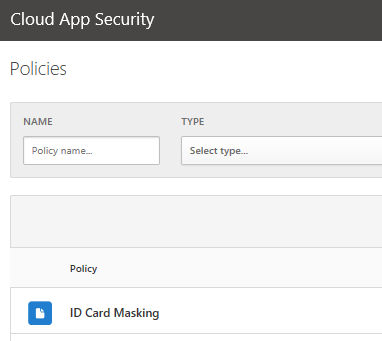
  1. Go to Control > Policies

cas01


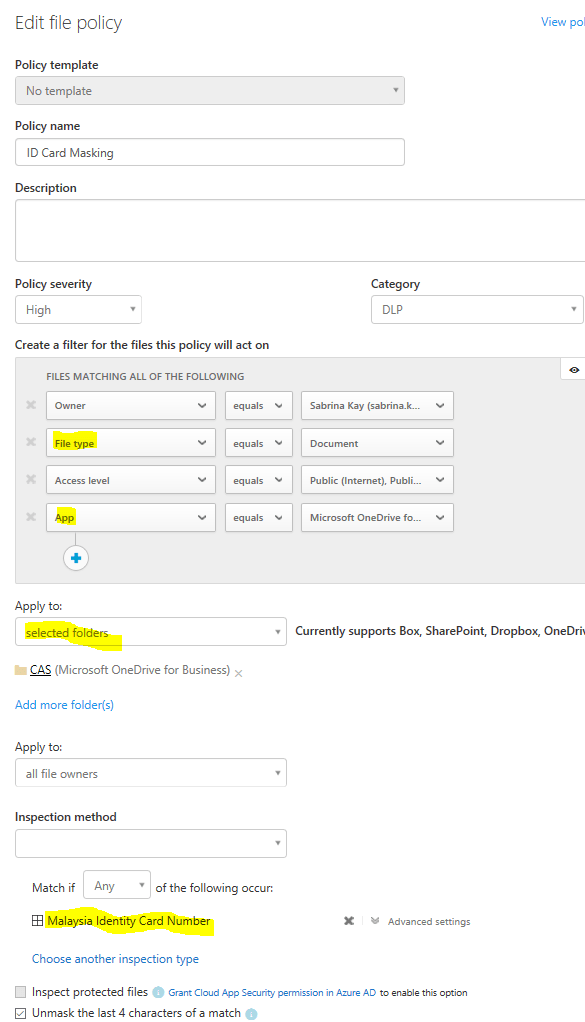
2. Expand ID Card Masking policy settings

  • I selected no template
  • Give a policy name
  • Give a level of severity
  • Give a Category type
  • Give some Filtering that this policy will act on (The clearer the better the match)
  • I selected a specific folder in my OneDrive for Business for this policy to act on
  • Next, I selected the Inspection method > Data Classification Service > Malaysian Identification Card
    • This part you can only choose 1 Data Classification for each file policy you created
  •  I checked Unmask last 4 sensitive information

cas02.png


3. Next, you will have to define notification and actions

  • So for notification, I leave it as default
  • For action, you have the option to apply AIP  on this document that matches to this policy

cas03.PNG

*The AIP label contain DLP labelling and AIP labelling for you to choose from

4. So after 3 minutes of this policy creation, you will be able to view matching result from Investigation tab or Policy.

  • Click on the Policy name (highligted)

cas04-1.png


  • Then it will show you the statement where the sensitive information found in the documents
  • And these sensitive informatino are masked and last 4 value are unmask

cas05

So yeah…that is how the masking works and looks like. If you would like more about what and how, do drop me an email or comment below 😀


References:

  1. https://docs.microsoft.com/en-us/cloud-app-security/data-protection-policies

Troubleshoot MFA for Outlook with Modern Authentication turned on

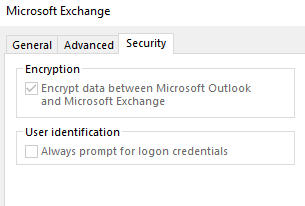
First of all, understand that I also went through trouble with this modern authentication that is turn on and causing you to see “Always prompt for logon credentials” option is grey out under Outlook application. You would like to have app password for your outlook application but got stop to proceed so because of modern authentication. Is also troublesome to have to keep on keying the code whenever you are re-login your Outlook application without the app password setup on your Outlook account.

*Modern authentication only supports 2013 or the earlier release, please refer to reference for further information

Example for Outlook 2016;

Where to see the grey out “Always prompt for logon credentials”?

File > Info > Account settings > Account Name and Sync Settings > Select More Settings > go to Security tab

outlook01


However, to sign in with app password, there are 2 options;

  1. If you have an existing account in your Outlook application and have “Always prompt for a password to log in” is enabled then you will just have to key in the app password in the prompt panel.
  2. If you are re-adding or add new account then you will have to key in the app password during your setup of the account for your Outlook application.

*These options doesn’t just limit to Outlook application only

So to disable the modern authentication you may need to add-on a registry;

  1. Go to registry
  2. Locate this directory HKCU\SOFTWARE\Microsoft\Office\16.0\Common\Identity\EnableADAL
  3. If “EnableADAL” registry is not created yet then create it as DWORD and set the value to “0”
  4. If you have already has this registry then just change the value to “0”
  5. Close the registry and restart your Outlook application (by closing and re-open)
  6. You will see the prompt for the credential to log in is shown while you launch your Outlook application
  7. Key in your app password and select remember password

*Is much simple to add registry 

*But I recommend that you remove the profile and then re-add

References;

  1. https://answers.microsoft.com/en-us/msoffice/forum/msoffice_outlook/modern-authentication-on-outlook-2016-keeps-on/98a263f4-ab9c-4d6f-b5eb-2728a8e77412
  2. https://docs.microsoft.com/en-my/office365/enterprise/modern-auth-for-office-2013-and-2016?redirectSourcePath=%252fen-us%252farticle%252fHow-modern-authentication-works-for-Office-2013-and-Office-2016-client-apps-e4c45989-4b1a-462e-a81b-2a13191cf517

Office 365 Secure Score

office365secure

Security is a Journey

Secure Score is here to help.

Secure Score analyzes your organization’s security based on your regular activities and security settings in Office 365 and then assign a score.

Secure Score also provides you few guidelines on how to meet the score but not all of the score is needed by your organization to meet.

If you like to know how this Secure Score works and calculates, then you could refer to the link below at the “References”.

If you would like to know what are the requirement license to have this Secure Score, then you could refer to the link below at the “References”.

If you have any questions or concerns, then you could drop comments in this blog and I’ll get back to you.


*For Your Information

Please try not to modify any default security policies ,else you have no fallback plan.

References:

  1. https://docs.microsoft.com/en-us/office365/securitycompliance/office-365-secure-score