Azure & PowerShell: Service Plan Information

Hey dudes and ladies! Malaysia Movement Control Order has announce extend till 12th May but with relax conditions. Before the announcement, there was a decrease in number of reported cases and we had hope that there won’t be another extend announcement. However, the reported cases increases. Anyway, hope you guys are doing good at home, to those are infected by Covid-19, hope rapid recovery and to those are getting racism attack or getting criticism from past infection, hope you don’t hurt yourself which is not your fault.

Have you ever have customers that wanting to disable certain service plans in subscription or license? Are you going to manually click person by person to disable? Of course not! Things like these is best to use PowerShell, you could even generate/export a report.

Note:

  1. Don’t call Microsoft Support to identify your service plans because they have no idea and they most likely don’t take your case. Trust me I been there.


There are 2 type of command library you could use to extract these information either Azure AD PowerShell or MSOnline PowerShell. Play around with the service get to know which is the service that it belongs to and which service has dependency.

Below the list of service plans for Office 365 Enterprise E3 and E5;

  • I grab the below information using MSOnline PowerShell, this was during the year 2017. I will post up a new update.
Office 365 Enterprise E3
-------------------------
Deskless
FLOW_O365_P3
POWERAPPS_O365_P3
TEAMS1
ADALLOM_S_O365
EQUIVIO_ANALYTICS
LOCKBOX_ENTERPRISE
EXCHANGE_ANALYTICS
SWAY
ATP_ENTERPRISE
MCOEV
MCOMEETADV
BI_AZURE_P2
INTUNE_O365
PROJECTWORKMANAGEMENT
RMS_S_ENTERPRISE
YAMMER_ENTERPRISE
OFFICESUBSCRIPTION
MCOSTANDARD
EXCHANGE_S_ENTERPRISE
SHAREPOINTENTERPRISE
SHAREPOINTWAC

Office 365 Enterprise E5
-------------------------
Deskless (StaffHub)
FLOW_O365_P2 (Flow)
POWERAPPS_O365_P2 (PowerAPPS)
TEAMS1 (MsTeams)
PROJECTWORKMANAGEMENT (Planner)
SWAY (Sway)
INTUNE_O365 (Mobile Device)
YAMMER_ENTERPRISE (Yammer)
RMS_S_ENTERPRISE (Azure Right management)
OFFICESUBSCRIPTION (O365ProPlus)
MCOSTANDARD (Skype For Business)
SHAREPOINTWAC (Office Online)
SHAREPOINTENTERPRISE (SharePoint Online)
EXCHANGE_S_ENTERPRISE (Exchange Online)

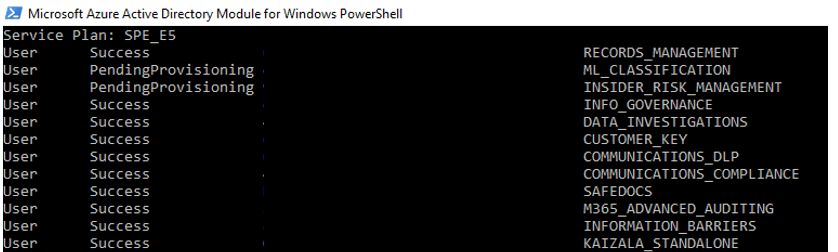
Below Microsoft 365 Enterprise E5 using Azure PowerShell;

*the list is too long so I’m just going to show partial only.
Capture

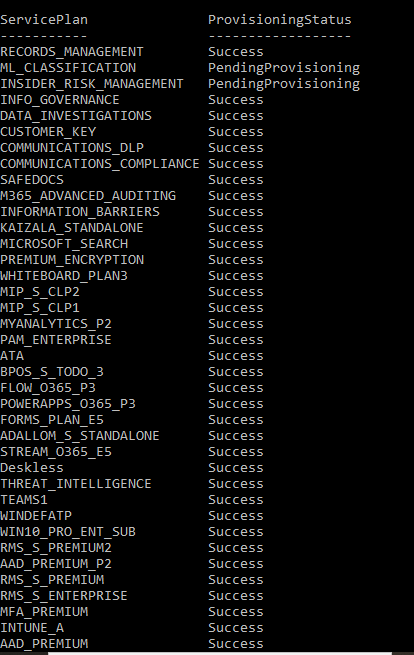
This below is using the MSOnline Powershell;
Capture


References:

  1. https://docs.microsoft.com/en-us/office365/enterprise/powershell/view-account-license-and-service-details-with-office-365-powershell
  2. https://docs.microsoft.com/en-us/powershell/module/msonline/get-msolaccountsku?view=azureadps-1.0


Azure Storage & Office 365 Import PST: Troubleshoot Error “HttpStatusMessage: Bad request”

Hey guys and girls, just hope everyone are good during this Covid-19, movement control. Those that are hospitalize, hope that you recover. Those that have recovered, hope that you don’t face any criticism from others and not fall for Covid-19 again.

Well for IT field workers, our work still continues. In my lab environment, I was testing out Office 365 Import PST feature in Security and Compliance. Personally I feel this is a good feature but there is too much manual work on it.

Note:

Using network upload to import PST files is free.

Check out license plan to have this import feature at the reference below.

So just a brief explanation of what I was performing, in the Office 365 Import PST has 2 option for us on how we want to upload the PST, either network upload (free) or physical (Charges). I choose network upload to upload my PST, it require to use AzCopy command to run the upload. I have a PST that the size is more than 1 GB, and the upload failed with the following error message on the AzCopy console shows “HttpStatusMessage: This request is not authorized to perform this operation using this permission.

At first I thought that there could be limitation on the upload size, due to the given Azure Storage is temporary only. Looking through the documentation it didn’t state any upload limitation. Hence, further research.

The resolution to this was to disable the ATP agent that was in my lab PC, to prevent blocking the upload. Rerun the AzCopy command again to reupload the PST.

If you have any third party or applications that has network control or ATP functionality, would recommend that you disable to avoid this problem happen to you.


References:

  1. https://docs.microsoft.com/en-us/microsoft-365/compliance/faqimporting-pst-files-to-office-365?view=o365-worldwide
  2. https://www.microsoft.com/en-us/microsoft-365/business/compare-more-office-365-for-business-plans

Office 365: What to know about Data Investigation?

“A data spill occurs when a document containing confidential, sensitive, or malicious content is released into an untrusted environment. When a data spill is detected, it’s important to quickly contain the environment, assess the size and locations of the spillage, examine user activities around it, and then delete the spilled data from the service. “

If you would like to try this preview out, I highly recommend that you test it out in a new test tenant. Please review the reference below for further explore. 

There is one functionality in this that caught my attention, is it even investigate unsupported files, example, files that are password protected cannot be processed since the files are locked or encrypted. Using error remediation, investigators can download files with such errors, remove the password protection, and upload the remediated files.

How to get to this?

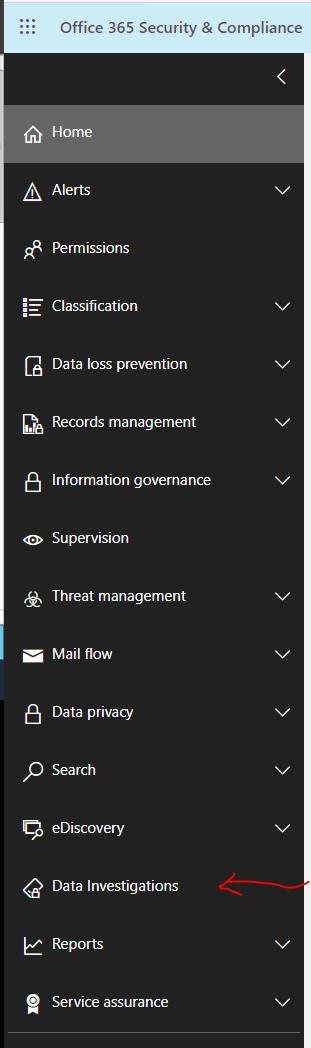
  1. Login to your https://protection.office.com
  2. Scroll to the bottom of the left taskbar
  3. Data Investigation is just after eDiscovery

Capture

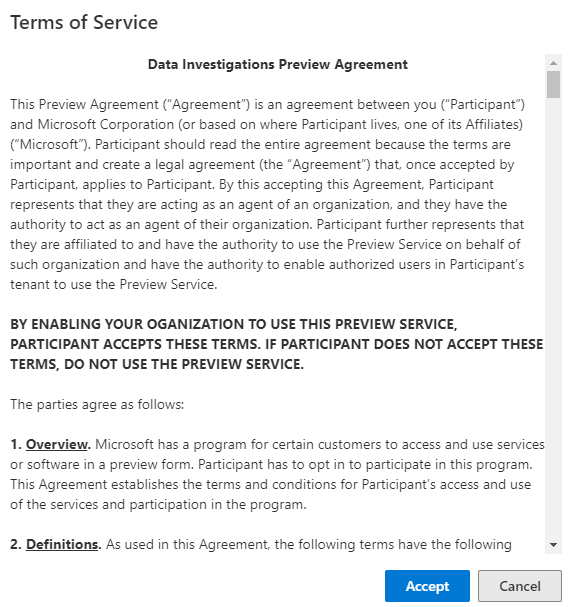
Before you could start using this preview, you have to read the Terms of Service and either approve or cancel to proceed. If you cancel, the agreement it will redirect you back to Home tab.

Microsoft takes its preview seriously.

Capture

References:

  1. https://docs.microsoft.com/en-us/microsoft-365/compliance/overview-data-investigations?view=o365-worldwide

Intune Autopilot: Troubleshoot RDP access prompt

So I am testing Autopilot in my lab environment, consist a Hyper-V with its Virtual Machines. Well I am doing a manual registration, so how do I export the device information that is required my VM to be register for Autopilot?

I already have a VM running Windows 10 Pro, and I ran this script to export and automatic import the device information to be register into autopilot. However, I wasn’t running the script before Out-of-the-box-experience (OOBE) happen, so to make Autopilot work on my VM, I had to reset my VM.

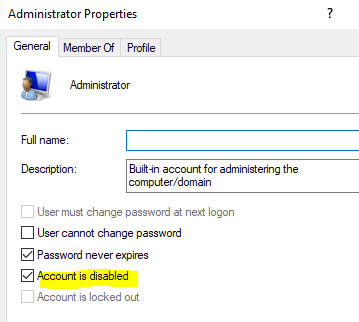
Once the VM has reset,  it ask for region, language of my keyboard and next it shows a welcome page with the Display name and the company name. So I key in the email address and password of the user and also setup the PIN. However, I just notice that I set this user with the Standard permission only. Thus, the administrator account is disabled and I keep getting the RDP permission error prompt due to the user account is not in the RDP group in the VM.

Example of the prompt;

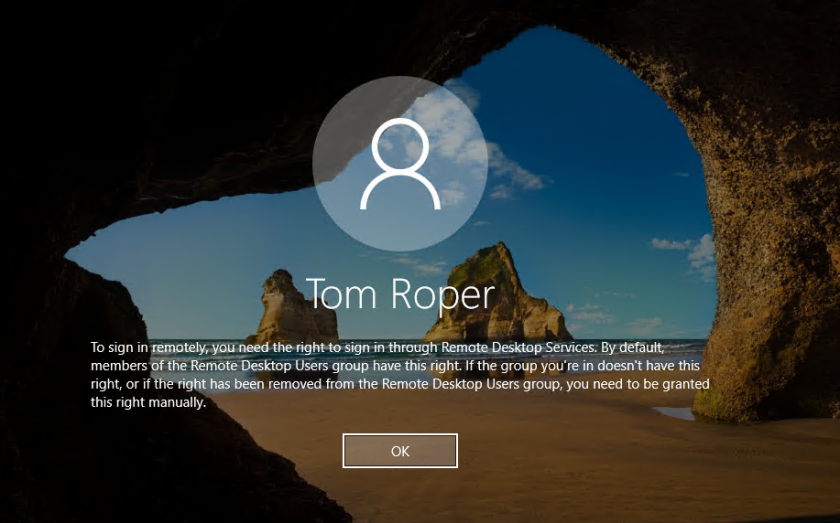
To sign in remotely, you need the right to sign in through Remote Desktop Services. By default, members of the Remote Desktop Users group have this right. If the group you’re in doesn’t have this right, or if the right has been removed from the Remote Desktop Users group, you need to be granted the right manually.

050317_1039_Tosigninrem1

How I troubleshoot this;

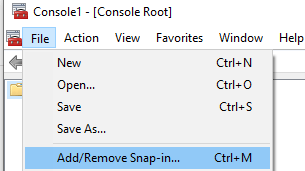
  1. Is to run MMC as administrator > File > Add/Remove Snap-in
    • Capture
  2. Key in your Office 365 admin account (an account with permission that can manage device)
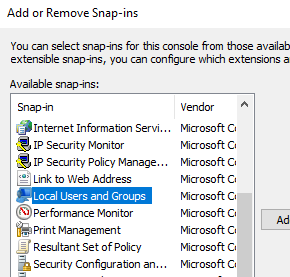
  3. Select Local Users and Groups > Add
    • Capture
  4. Select Local computer > Finish > Ok
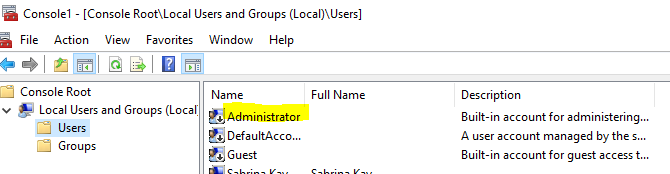
  5. Expand the local users and groups > Users > Right click Administrator  > Uncheck Account is disabled
    • Capture
    • Capture
  6. Reset the local Administrator password too
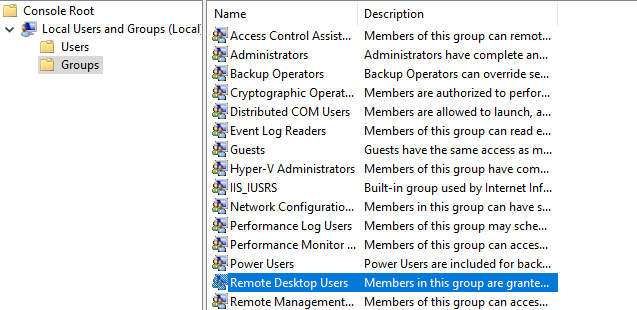
  7. Select Groups > Right click on the remote desktop users > Add > Authenticated users > Ok
    • Capture
  8. Close MMC
  9. Sign out and Sign in again


These steps should help you from getting the prompt again.

Please take note that I am doing this in Lab environment. In production, by right not to enabled administrator account and not to do any changes to the local users and groups. 

Azure Information Protection: Office application prompt for privacy notice

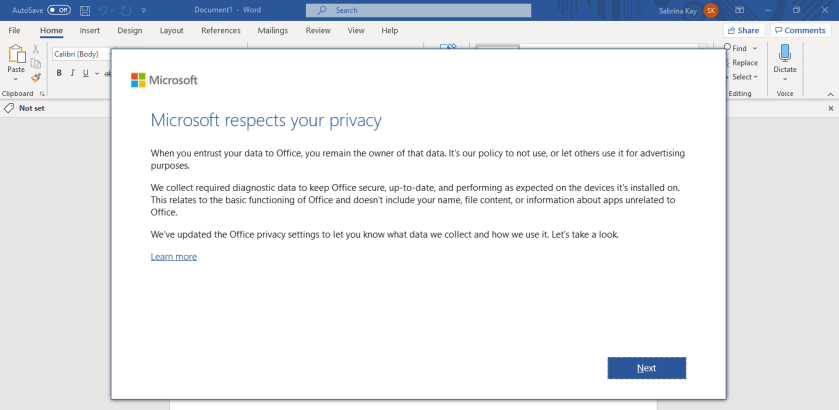
Microsoft provide notice to end users that has Azure Information Protection enabled and Policy has set to them. It does not matter either you are on Azure Information Protection Classic or Unified labeling.

When you first launch your office application or relaunch it you will get this notice.

A privacy notice such as below;

privacy.PNG

Differences of AzInfoProtection and AzInfoProtection_UL client application

When unified labeling was announce that it is no longer in Preview mode, and here it comes the new application called, AzInfoProtection_UL, you could find the link to download this application at the references below of this post. There is the Preview application called, AzInfoProtection_UL_Preview.

Before unified labeling, the only application has for Azure Information Protection is AzInfoProtection (Classic client). So what so different about them? Before we jump into getting to know what are the differences, let’s understand the definition or meaning.

Classic client

Azure Information Protection is a new enhancement of rights management and it is manage from Azure portal. If you need scanner and HYOK (your own key) then you install AzInfoProtection.exe (User Profile based installer) or AzInfoProtection_MSI_for_central_deployment (System installer) client application.

word01
Classic client
word03
Classic client
word04
This part shows Azure labels and Office 365 Sensitivity labels. Let’s take “DLP View Only” is a label custom created from Office 365.


Unified labeling

Azure Information Protection with Unified Labeling was just announce somewhere the month of June or July 2019. Unified Labeling means that your labels can be manage either from the Azure portal or from Office 365 Security and Compliance portal. This feature is enabled by default. You can migrate your labels from Azure to Office 365 Security and Compliance. Unified Labeling supports for more Office 365 products, such as Microsoft Teams. If you do not need HYOK protection (your own key)  or the scanner, then you install AzInfoProtection_UL.exe (User Profile) or AzInfoProtection_UL_MSI_for_central_deployment (System installer) client application.

word05
This is how it looks like first install, notice the icon is different
word06
Select on the “Sensitivity” icon and click “Show Bar”
word07
These are my Office 365 Sensitivity labels

If you would like to deep-dive the comparison of these 2 application here is a helpful link.


References;

  1. https://www.microsoft.com/en-us/download/details.aspx?id=53018
  2. https://docs.microsoft.com/en-us/azure/information-protection/rms-client/unifiedlabelingclient-version-release-history


Azure Information Protection and Unified Labeling (No longer in Preview)

This post has been in my draft, just got too much to handle this few months and I am terribly embarrassed about holding this post in draft. *Gomeinasai*

Last few weeks, I notice that there is a new Azure Information Protection version of the client, it was released on 14th July 2019, stating that it comes with unified labeling. I was a slight surprise “Is it true? that unified labeling is no longer in preview mode?”.

Capture

Before it was announced that it is no longer in preview mode, I had to do the manual integration and it will cause the Security and Compliance’s Data Leak Protection Policy to crash via GUI. I had to use force command to remove the Data Leak Protection policy, via PowerShell.

Manual integration involving SharePoint settings, Security and Compliance, and Azure Information Protection. However, this may win theoretically but technically is not working that well for me though. Well, it was a tough experience but good to go through it.

I tried many ways to get it working but it will crash. “Updating…” status will just stay there for more than 48 hours! *faint*

Anyway, is good to know that Unified labeling is no longer in preview mode. You can manage your labeling in Security and Compliance too by migrating the Azure Information Protection Labeling (AIP). Just to make sure no duplicates labeling in Security and Compliance before migrating.


Azure Information Protection: Install Azure Information Protection Application for Windows Client

If your Windows client is a joined to the domain and has limited privilege, to download software or applications. Thus, requirements a local administrator or an administrator account to proceed with these changes.

Requirements

  1. Supported Windows
  2. Supported Office Application
  3. The Internet
  4. Browers

Step-by-Step

  1. Browse to Microsoft Download
  2. Once you have finish download, double click on the installer
    • az02.png
  3. Select “I agree”
    • az01
  4. Select “close”, once completed
    • az03.png
    • az04.png
  5. You will find the Azure Information Protection Viewer application shown and your office application has the Azure Information Protection labels shown too
  6. Select Start or Windows button
    • az05.PNG


There is another way to have this installed in the client’s device that is joined to the domain, which is through GPO (Group Policy Management).

Office 365 Secure Score

office365secure

Security is a Journey

Secure Score is here to help.

Secure Score analyzes your organization’s security based on your regular activities and security settings in Office 365 and then assign a score.

Secure Score also provides you few guidelines on how to meet the score but not all of the score is needed by your organization to meet.

If you like to know how this Secure Score works and calculates, then you could refer to the link below at the “References”.

If you would like to know what are the requirement license to have this Secure Score, then you could refer to the link below at the “References”.

If you have any questions or concerns, then you could drop comments in this blog and I’ll get back to you.


*For Your Information

Please try not to modify any default security policies ,else you have no fallback plan.

References:

  1. https://docs.microsoft.com/en-us/office365/securitycompliance/office-365-secure-score

Office 365 Security and Compliance: Data Leak Protection (DLP) & Azure Information Protection (AIP) Integration Unable to delete DLP Policy

Well hello! I’m back, yes I had been very busy last 2 months unable to write any new blog.

So when I was testing and playing with DLP and AIP in my test environment and I had 2 testing integration policy running and I found there was something wrong with my DLP policy and I went to trigger the delete via GUI at Security and Compliance and it basically will change its status to “Deletion pending” state. I know sometime these deletion takes up  to 48 hours. However, it was more than 48 hours and the DLP policy is still showing the status “Deletion pending”.

So its time to use PowerShell to solve this deletion pending problem;

*Take Note;

If you try to run the “Remove-DLPCompliancePolicy” this PowerShell without using the “ForceDeletion” to delete this policy it won’t work and you will return with an error;

#Sample PowerShell
Remove-DlpCompliancePolicy -Identity 58bed0c6-fbf9-41c4-b798-fdec65beae1c

We cannot remove policy ‘TopSecret_policy’ since it is already in pending deletion state.
+ CategoryInfo : InvalidOperation: (:) [Remove-DlpCompliancePolicy], ErrorCannotRemo…PolicyException
+ FullyQualifiedErrorId : [Server=xxxxxxxxxxxxxxx,RequestId=xxxxxxxx-xxxxx-xxxx-xxxxx-xxxxxxxxxxx5,TimeStamp=4/1/2019
8:26:50 AM] [FailureCategory=Cmdlet-ErrorCannotRemovePendingDeletionPolicyException] xxxxxx,Microsoft.Office.Com
pliancePolicy.Tasks.RemoveDlpCompliancePolicy
+ PSComputerName : apc01b.ps.compliance.protection.outlook.com

What to do?

  1. First of all you need to using PowerShell and connect to Security and compliance
    1. https://docs.microsoft.com/en-us/powershell/exchange/office-365-scc/connect-to-scc-powershell/connect-to-scc-powershell?view=exchange-ps
  2. Next run the command below to get your DLP information

Get-DLPCompliancePolicy | select Name, Guid

3. Than run this command

Remove-DLPCompliancePolicy -Identity “Policyname” -ForceDeletion

OR

Remove-DLPCompliancePolicy -Identity “Policy GUID” -ForceDeletion

4. Select “A” , A is Yes to All

Below is a sample;


Capture


References:

  1. https://sabrinaksy.com/2020/07/25/powershell-unable-to-delete-stuck-data-leak-policy-using-forcedeletion/