Difference of Hyper-V in Legacy Server and Non-Legacy Server (Backup)

To those that wants to perform Live backup or export (to a local drive or external drive) of your virtual machines via Hyper-V, before you jump into that there are few things that you need to take concern of;

  1. Where is your virtual machines located on what server operating system?
  2. Does the server support live backup or export?

What is live backup or export?

  • A live backup or export is where you could run your backup without having to shut down the virtual machines. This require minimal to zero impact or downtime.


If your virtual machines are hosted on a legacy server, such as Windows Server 2012 below, you are require to shut down the virtual machines and perform the backup or export. If the virtual machine is not shut down the export button will not be shown to you to perform the backup. However, please do take note that if you were to migrate virtual machines from legacy server to non-legacy server, is best to not use the export feature in the legacy server, please refer the reference below for full explanation and proper way to migrate.


If your virtual machines are hosted on a non-legacy server, such as Windows server 2012 and above, then you can perform live backup or export without the need to experiences total downtime. As technology getting more advance this is the benefit to IT admins to perform their tasks without the need to perform after hours, and end users will not experience total downtime.


Do also read up and understand when to use checkpoints and when not to use checkpoints. Is basically means snapshots.


References:

  1. https://sabrinaksy.wordpress.com/2020/02/20/how-to-migrate-or-import-vm-from-windows-server-2008-r2-to-windows-server-2012-r2/
  2. https://www.petri.com/live-exporting-windows-server-2012-r2-hyper-v-vms
  3. https://blog.workinghardinit.work/2016/06/16/live-export-a-running-virtual-machine-or-a-checkpoint/

 

Ways to Setup a Lab Environment

Hey guys! I just upload a video on “Ways to setup a Lab environment”. Is a video about my experiences with types of lab environment setup, and what are my feedback for each of them and recommendation for you guys that suits your situation.

Hope you guys enjoy the video, sorry that I sound a bit sick, is actually just cold during at night. hahaha nothing serious just chillax bro. Is been awhile that I haven’t done videos, because was occupied with work.

Here is the link to the video;

Ways to Setup a Lab environment

Hope you guys find it informative.

How to Migrate or Import VM from Windows Server 2008 R2 to Windows Server 2012 R2?

This is my first time doing VM migration or import/export of VM from server 2008 R2 to server 2012 R2. At first, I used the export function from the Hyper-V in server 2008 R2 and I notice the export result was different from the server 2012 R2. Thus, when I try to import the VM from server 2008 R2 to server 2012 R2, it was unable to recognize.

Always make a backup copy! Don’t modify the original!

This is because 2008 or 2008 R2 are legacy servers, and choosing the export feature to export the VM will result of export EXP file instead of XML file. In server 2012 R2, VM that is exported has XML file.

The best way to import VM from legacy server is to copy the entire VM folder to server 2012 R2. When I mean entire VM folder, means its VHD and etc..

This VM that I am importing does not have any checkpoints or snapshot, so I am unsure that do you required to delete the copied snapshots before you import.

So what I did was,

  1. At server 2008 R2, shut down the VM
  2. Locate the entire Data folder of the VM in File Explorer
  3. Right click the folder > Properties > Share > Advanced Sharing > Add the specific user account (server 2012 R2) and the computer (server 2012 R2) > Full Control
    • Is up to your choice on how you want your destination server to retrieve the source information (VM), it could be via a Network Share, a USB, or an external Hard Disk
  4. At server 2012 R2, open file explorer
  5. At the top bar, type “\\<2008 R2 server name/IP address>\<vm folder name>\”
  6. Copy the entire folder and paste it into server 2012 R2 (your comfortably location/driver/directory)
  7. Remember to remove the share permission of the folder in server 2008 R2, after you finish copying the folder  from server 2008 R2 to server 2012 R2
  8. Create a new folder in server 2012 R2 and rename it as your actual/original VM’s folder naming in server 2008 R2, this folder will be the new location of your VM
  9. Go to Hyper-V in server 2012 R2 > select the Import Virtual Machine at the right side bar
  10. Browse and locate the VM folder that you just copied
  11. Select the import type “Copy the virtual machine“, this allows you to create a new unique ID of the virtual machine and also allows you to choose your new location to store this VM in sever 2012 R2
    • Capture
  12. Make sure the new location are browse to the new folder that you just created in server 2012 R2
  13. Then you click next > finish and wait for the importing to complete
  14. Make sure the VM in server 2008 R2 is Shut down
  15. Start or Boot up the VM in server 2012 R2 (If required to change IP address of the VM then change)
  16. Everything is fine and monitor for 48 hours, then only decide to remove the VM in server 2008 R2


After import the VM, Hyper-V do not start the VM automatically. You have to start the VM manually, after import completed.

Intune Autopilot: Troubleshoot RDP access prompt

So I am testing Autopilot in my lab environment, consist a Hyper-V with its Virtual Machines. Well I am doing a manual registration, so how do I export the device information that is required my VM to be register for Autopilot?

I already have a VM running Windows 10 Pro, and I ran this script to export and automatic import the device information to be register into autopilot. However, I wasn’t running the script before Out-of-the-box-experience (OOBE) happen, so to make Autopilot work on my VM, I had to reset my VM.

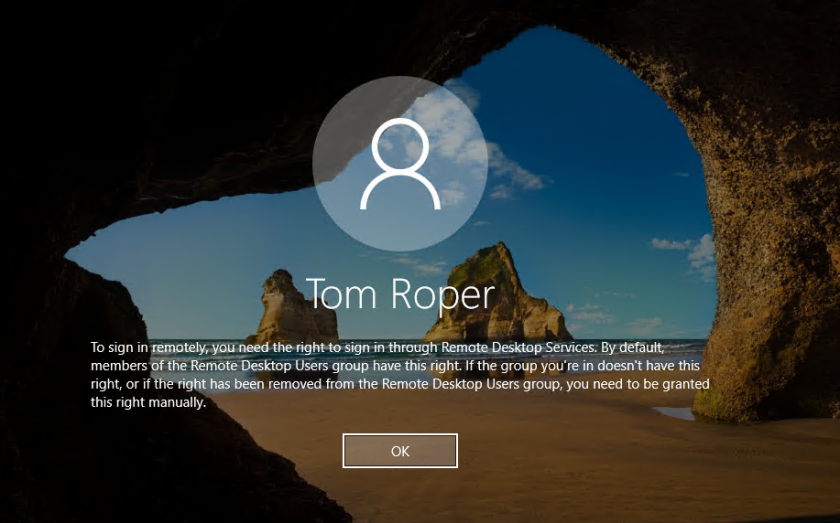
Once the VM has reset,  it ask for region, language of my keyboard and next it shows a welcome page with the Display name and the company name. So I key in the email address and password of the user and also setup the PIN. However, I just notice that I set this user with the Standard permission only. Thus, the administrator account is disabled and I keep getting the RDP permission error prompt due to the user account is not in the RDP group in the VM.

Example of the prompt;

To sign in remotely, you need the right to sign in through Remote Desktop Services. By default, members of the Remote Desktop Users group have this right. If the group you’re in doesn’t have this right, or if the right has been removed from the Remote Desktop Users group, you need to be granted the right manually.

050317_1039_Tosigninrem1

How I troubleshoot this;

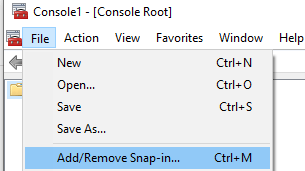
  1. Is to run MMC as administrator > File > Add/Remove Snap-in
    • Capture
  2. Key in your Office 365 admin account (an account with permission that can manage device)
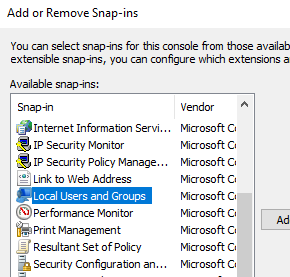
  3. Select Local Users and Groups > Add
    • Capture
  4. Select Local computer > Finish > Ok
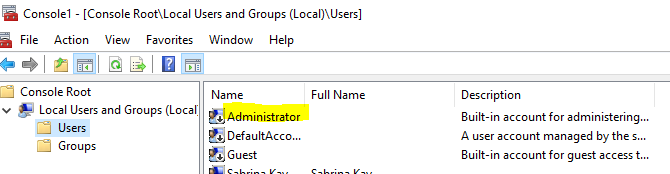
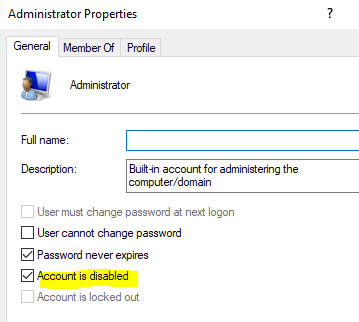
  5. Expand the local users and groups > Users > Right click Administrator  > Uncheck Account is disabled
    • Capture
    • Capture
  6. Reset the local Administrator password too
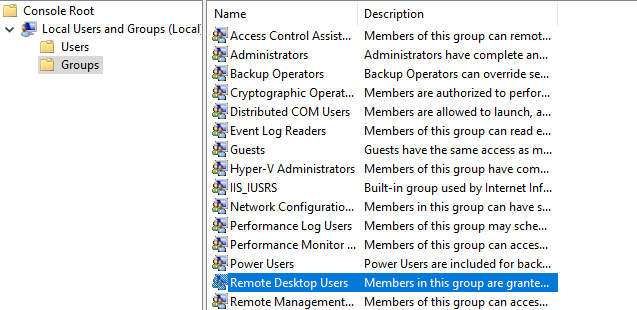
  7. Select Groups > Right click on the remote desktop users > Add > Authenticated users > Ok
    • Capture
  8. Close MMC
  9. Sign out and Sign in again


These steps should help you from getting the prompt again.

Please take note that I am doing this in Lab environment. In production, by right not to enabled administrator account and not to do any changes to the local users and groups. 

Outlook: Why People Online Status is Grey Out?

Ever faced grey out present status in your outlook? You start to wonder was it the settings block from office 365, or is your firewall blocking, or is there registry configured?

If you have ask above questions and also checked that none above related then the next question you should ask yourself is “What Office 365 license I’m on?“. The answer is if you are not using any Office 365 enterprise license, or your Office installer is “Home and Business” you will not have the online status feature. Is a limitation based on type of license that you subscribed.

Hence, get consultation and get to understand about the licenses that you are going to purchase.

How to check?

Open your Outlook App > Click on File at top left

Capture01

Click on Options at the left side bar

Capture02

Click on People > Scroll down you will see this grey out

Capture

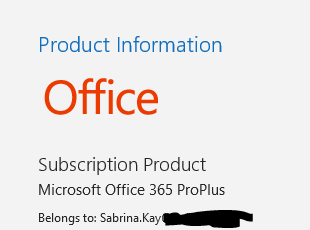
My Office Application are using ProPlus

Capture

OneDrive and Active Directory: Error Code 0x8004de40

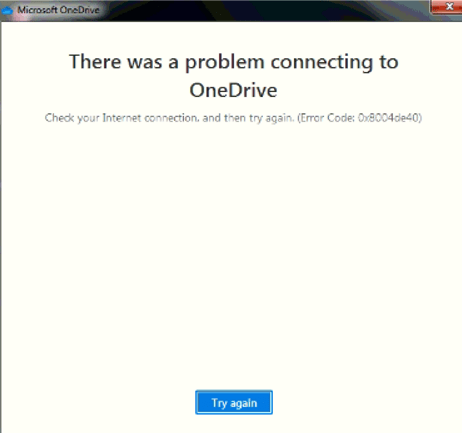
First time experience such error and behaviour, so the situation is that this user has problem getting her OneDrive to work on her desktop, it was her first time setting it up and she receive the above error code after she sign in and authenticate her account.

Capture

Well from Azure AD, it will shows that her login activity for OneDrive is successful, but Azure AD doesn’t shows that her setup was failed. At first I suspect it could be network issue, tested another account it went through the setup successfully. Hence, running PowerShell (Msol), to query the user account information and perform comparison and everything was showing in good condition.

Another thing is that she can successfully use the web based on SharePoint Online and OneDrive online.

As I went through to the Exchange Admin center and notice her email addresses missing a type, that is the SPO. This type of email address is generated once the user is assigned with the Office 365 license with Sharepoint Online and OneDrive online features.

The only resolution to this is to recreate the account. 

  1. Backup mailboxes to PST and files to a local drive or external drive
    • There are many ways to backup
  2. Unassign the user license
  3. Go to Active Directory and disable the account and move it to a unsync Organization Unit
  4. Go to Azure AD Connect Server and perform the sync
  5. Go to Office 365 make sure that the account has been move to deleted users, well you could use PowerShell to query -ReturnDeletedUsers.
    • Get-MsolUser -UserPrincipalName <username>@domain.com.my -ReturnDeletedUsers
    • Once it is found, then run the remove command, you can use GUI to remove them at the Azure portal “portal.azure.com”
      • Get-MsolUser -UserPrincipalName <username>@domain.com.my -ReturnDeletedUsers | Remove-MsolUser -RemoveFromRecycleBin -Force
  6. Go back to your Active Directory and recreate the user account, and make sure it is in the sync OU
  7. Run another sync at your Azure AD Connect Server
  8. Go to Office 365 > Active Users > Search for the user and assign the license


There are few reasons why this happen, for my case was the old Azure AD Connect server died or corrupted and had to re-provision a new one. Users are some still on Exchange on-premise and some are in cloud, due to budget. Sometime things happen.

Anyway, hope this helps! 


Azure Active Directory: Troubleshoot Immutable ID Matching Error “AttributeMustBeUnique”.

Nowadays there are becoming lots of tools to convert objectGUID to immutable ID. However, one of my friend was facing a problem “AttributeMustBeUnique” in the Azure AD Connect (AADC). Mostly the articles that talk about this error “AttributeMustBeUnique“, is asking people to look at the “Deleted User” or Query the duplicate account from Recycle Bin.

For this case, is slight different.

To understand what is he facing,

  1. A user account was created at cloud first.
  2. A user account status is “in cloud” in Office 365 > Active Users
  3. There is no duplicated account in the Recycle Bin
  4. My friend he empty the Immutable ID and replace it with a new Immutable ID that is covert from objectGUID, to match the account in cloud with its account in on-premise
  5. He used a tool to convert the objectGUID to Immutable ID.
  6. Replace the empty Immutable ID with the converted ones and run a full sync from AADC server. However, he was still getting the error.

After checking upon it was the objectGUID that he copied wrongly. Thus, converted the Immutable ID value wasn’t matching the ones that Azure AD detected.

Azure AD Sync error detection able to detect, identify and provide the suppose correct value of Source Anchor (Immutable ID). Every deployment of Azure AD Connect will match the account via source anchor.

04

What is source anchor? In layman term is the Unique ID from cloud.

References:

  1. http://guid-convert.appspot.com/
  2. https://docs.microsoft.com/en-us/azure/active-directory/hybrid/plan-connect-design-concepts

Windows Server 2019: How to activate OS license after promoted the server as Domain Controller?

Happy Chinese New Year to my Chinese friends and Happy holiday to the non-Chinese friends!

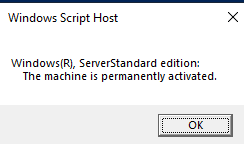
There are cases where you have to apply the license later due to you have to wait for the license key. So you had to proceed deploying and running your tasks. However, the GUI of activate the Windows Server license doesn’t prompt to allow you to key in the product key and there is no error shown. (After you have promoted the server as Domain Controller)

The solution is to activate the license key through command prompt or Windows PowerShell and run as administrator.

If you have forgotten the command, is “slmgr” and to see the list of the command’s option just type “slmgr /help“, it will prompt the list.

Here is an example;

Capture

Below is the command to activate your license key;

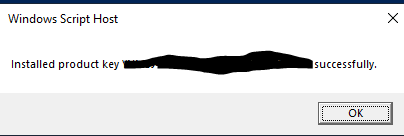
slmgr /ipk <your product key>

Capture

If you wish to view expiration of your license key, then you could use this command;

slmgr /xpr

Capture

IBM Storwize V3700: Occasionally required restart

Hmm, what kind of behaviour that I am experiencing is that the server hangs and required restart to continue working. However, this behaviour occurs occasionally example after a few days or 1 or 2 weeks.

What I did was, checking the event logs to get a better understanding, what it shows on the event logs are “Event ID 27, 9 or 1076“, Source is “iScsiPrt

The Message looks like this “Initiator could not find a match for the initiator task tag in the received PDU. Dump data contains the entire iSCSI header.” or “Target did not respond in time for a SCSI request. The CDB is given in the dump data.“.

With such little information was given from the event logs and I had a suspicious it could be configuration issue on the server. Research and investigate, but didn’t find any answers that cause this issue, so I had to visit the unit physically to see that there is an amber light on one of the disk but then is still not the conclusion to the messages from the event logs.

IBM Storwize has 2 controllers left and right, each controller has 2 management and iSCSI port. Each port supports as management and iSCSI port. Yea, I know it sounds weird, but it was true after I dug up their product guide. By default, it should be connecting to second port, first port is optional. However, for this case it was connected to first port.

I was trying out to access the management portal through Internet Browser, http based, but no valid. Possible suspicious that it could be someone touching the cable (cable changed), to answer that, is to try out each of the management port. Result, 4 of the ports on both controllers are not responding the management IP address that was configured for the IBM.

Well, that concludes that the management IP is no longer working, and please request IBM to reset the management IP and also order parts replacement for the amber light storage.

References:

  1. https://lenovopress.com/tips1300-ibm-storwize-v3700-for-lenovo

How to export Online Archived Calendar to a CSV file from Outlook App 2016 and above?

Heyyy dudes and ladies! So I was stressing out this problem today and I wanted to share the resolution for this, as you know by now you cant find any resolution much now on the Web for this case.

Firstly, you could only view your online archived calendar from Outlook App. By default you couldn’t view it on Outlook Web.
*Note:
Please try not to re-import the online archived to your current calendar, imagine the amount of reminders it will prompt you. Yes, I did that test on myself, and I am getting a re-prompt of reminders of my 1 year calendar . hahaha. I’m such an idiot!

To view it for your Outlook Web;

  1. At your Outlook App > File > Save Calendar
  2. Choose your directory/location to save your calendar
  3. Modify the options to save full details or whatever you wish
  4. Rename it and click save
  5. Go to Office 365 portal > Calendar
  6. Add/Create a new calendar > Give it a Name
  7. Import calendar > Select from a file > Browse for the save calendar file
  8. Now you got to view your online archived calendar in Outlook Web

To save your online archived and entire current calendar to a CSV file;

  1. At your Outlook App > File > Save Calendar
  2. Choose your directory/location to save your calendar
  3. Modify the options to save full details or whatever you wish
  4. Rename it and click save
  5. Locate your saved calendar file and double click it to open at your Outlook App
  6. At your Outlook App > File > Open & Export > Import/ Export
  7. Then it will prompt you > Export to a file > Select the saved calendar > next all the way
  8. If there is a reoccurrence prompt that is asking to set a date range, just set your prefer date range.
  9. Last is finish, now you have a list of your all meetings, based on the date range into a CSV file.