When you perform a hard matching via PowerShell and you notice that once you run the Set-MsolUser command on the correct account, it return an error “Uniqueness violation. Source anchor”. Hmm what could be the cause for this error???
Well the reason for the cause of this error is obvious that there is still existing duplicated account is still not fully removed from Active Users list and Recycle Bin.
Note:
This post requires you to know the basic commands like Connect-MsolService, Set-MsolUser, Remove-MsolUser and Get-MsolUser.
So what you got to do is to run the remove command to remove the duplicated account. Once fully remove from the Active Users list and Recycle Bin, you could continue to set the immutable ID on the correct account.
Oh yea….if the account that you wish to set the new or correct immutable ID make sure it is empty or cleared before you set the new or correct ones.
Yesterday, I discovered that Microsoft has change the way how to disable office 365 group creation from users. You may refer from this Microsoft Docs and it was last updated in September 2019. It seems that it requires a minimum license of Azure AD Premium Plan 1. You may find this plan in your M365 E3 license. Before this, this was the way on how to disable office 365 group creation from users.
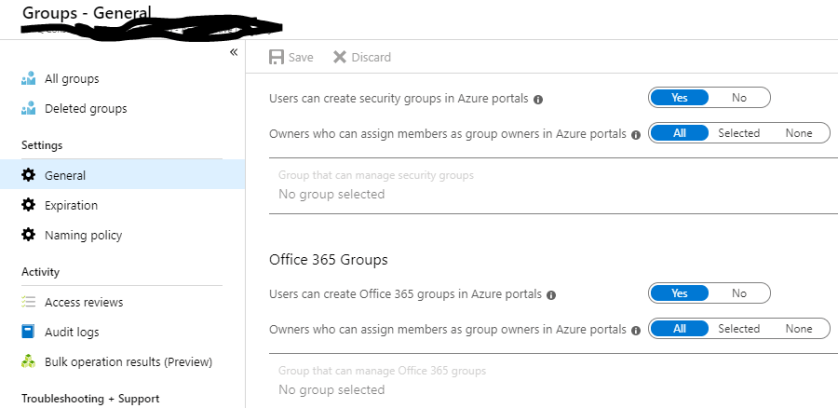
Looking through this blog post, on the Azure portal image, and comparing the current one has changed a lot. Now the group settings in the current Azure portal looks like this;
As you can see above the Office 365 Groups settings, you can only control users from creating office 365 groups via Access Panel or Azure portals.
To be honest, I felt a bit fooled by the “masking” method. Well at first just by looking at the feature at file policy, I thought it has the capability to mask sensitive information on the files but I was wrong until I test it out myself.
Another honesty from me is that I had read 7 times on one of the paragraphs from Microsoft Docs, about masking, then only I notice this feature is just plain masking to prevent from viewing at administration side. #sadme #dummy
*Note:
There are administration permission/role settings that you could manage. Will talk about this more on another blog
This doesn’t limit to only Office 365 Products.
It was this paragraph;
In addition, you can specify a regular expression to exclude a file from the results. This option is highly useful if you have an inner classification keyword standard that you want to exclude from the policy. You can decide set the minimum number of content violations that you want to match before the file is considered a violation. For example, you can choose 10 if you want to be alerted on files with at least 10 credit card numbers found within its content. When content is matched against the selected expression, the violation text is replaced with “X” characters. By default, violations are masked and shown in their context displaying 100 characters before and after the violation. Numbers in the context of the expression are replaced with “#” characters and are never stored within Cloud App Security. You can select the option to Unmask the last four characters of a violation to unmask the last four characters of the violation itself. It’s necessary to set which data types the regular expression searches: content, metadata and/or file name. By default, it searches the content and the metadata.
So the policy is all the same stage;
Define Condition
Define Actions
Define Exception
Define Notification
Anyway, this blog will elaborate on how the masking works;
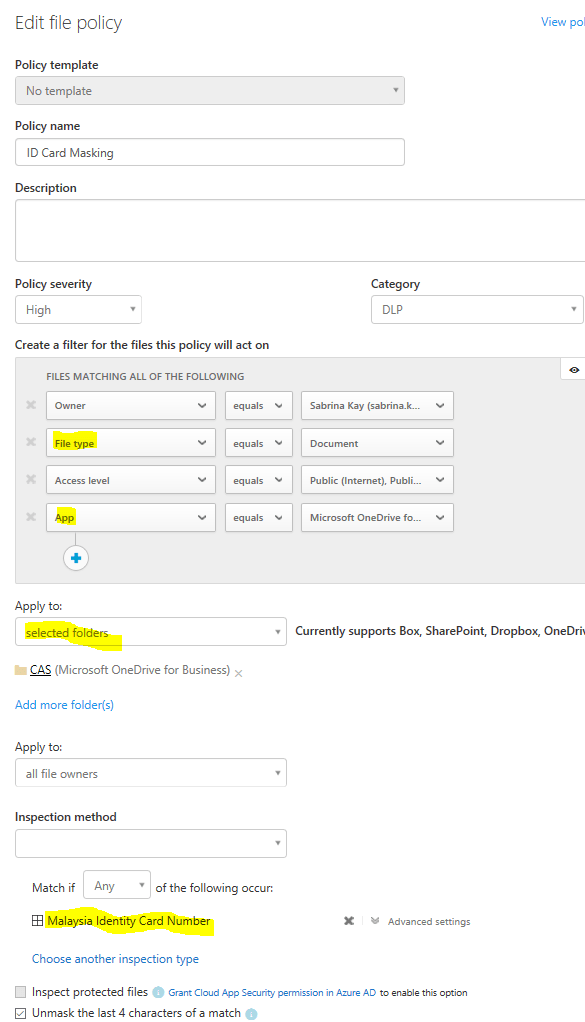
So I have created a file policy named “ID Card Masking”, so the purpose of this policy is to identify documents that contain “Malaysian Identification Card” and enable masking to prevent administrator to have the privilegeto view full details and prevent having it to store in Cloud App Security.
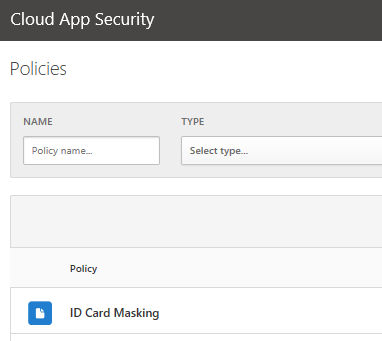
Go to Control > Policies
2. Expand ID Card Masking policy settings
I selected no template
Give a policy name
Give a level of severity
Give a Category type
Give some Filtering that this policy will act on (The clearer the better the match)
I selected a specific folder in my OneDrive for Business for this policy to act on
Next, I selected the Inspection method > Data Classification Service > Malaysian Identification Card
This part you can only choose 1 Data Classification for each file policy you created
I checked Unmask last 4 sensitive information
3. Next, you will have to define notification and actions
So for notification, I leave it as default
For action, you have the option to apply AIP on this document that matches to this policy
*The AIP label contain DLP labelling and AIP labelling for you to choose from
4. So after 3 minutes of this policy creation, you will be able to view matching result from Investigation tab or Policy.
Click on the Policy name (highligted)
Then it will show you the statement where the sensitive information found in the documents
And these sensitive informatino are masked and last 4 value are unmask
So yeah…that is how the masking works and looks like. If you would like more about what and how, do drop me an email or comment below 😀
Good day, everyone, I’m not here to insult but to raise awareness, so please read this with an open mind.
I had met and chat with a few different people from different companies, asking them to do you know about data security, is your company ready for data security, what do you think about security, and etc..
Most had replied to me that data security is expensive and does impact the end users productivity. When they told me that it is expensive, and I had asked them “why do you think it is expensive? “. Their answers had hesitation in it. Anyway, to the ones that told me that security could only bring impact to users, and I replied them “Plan, organize, and proper implementation, never jump/rush to a conclusion” (Disaster plan is important).
Technology is there, is how you look at it and use it. (A joke: Don’t tell me that you go shopping and you just blindly buy stuff without testing or checking whether that it really suits your needs/wants.)
Yes, whenever most users or companies hear about security, the first thing on their mind was expensive and impact. Had you really asked and research and gather enough information to prove it? (You know references) Had you ever compare the investment of data security vs The cost of Fines from regulators? (GDPR law fines? PDPA fines?)
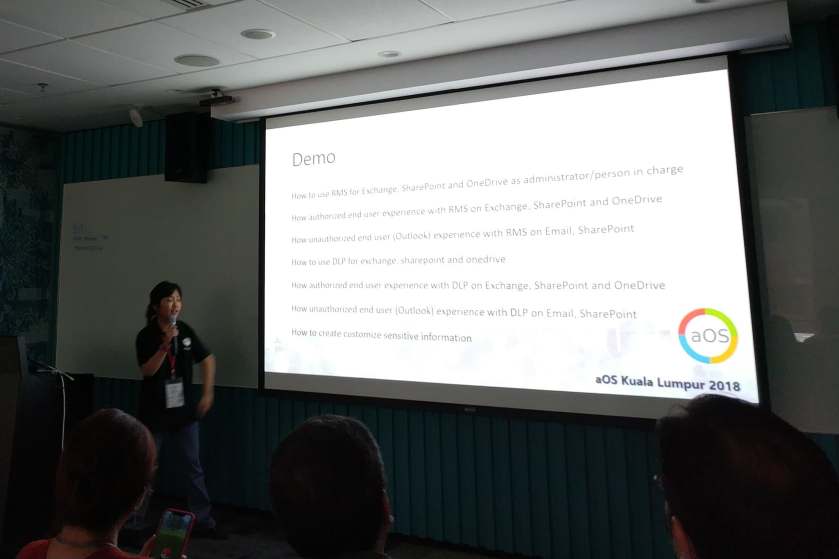
During my talk about Data Leak Prevention (Rights Management) in aOS KL event, on 23rd October 2018. I was trying to gain awareness to the audience about data security too. However, there was one audience told me that Microsoft enterprise license is expensive.
What I replied to the person, who was asking about the pricing of Microsoft enterprise license was to ask for more information with the licensing companies. I should have added another replied “Are you ready to lose 2% to 10% of your company global revenue (or probably both fine and jailed) to regulators?” but my session period had used up another extra 5 mins (felt panic and guilty to used up the time that is not mine already).
So for the people that were asking/telling about the security license is expensive in a technical session, I kindly advise you to think twice or many times to the statement above, which I’ve highlighted in RED.
Quote; “Better safe than Sorry” “Never a technology problem, Is human/attitude problem” “Never try, never know” “Plan, Don’t make harsh decision/actions” “Live till old, learn till old” (Take Malaysia’s latest Prime Minister as an Example) “Ask more doesn’t do harm, Only Stupidity does harm” “Stop dreaming, Wake up is reality”
Speaker for aOS Kuala Lumpur 2018 (IT Pro), Office 365 Security Compliance and Azure Information Protection DemonstrationWith Patrick Guimonet








 Sabrina Kay's Blog