Microsoft Sentinel: The tips to start off your journey

Hi everyone, has been months that I’ve not written anything. Hope you guys are having a great time. I had some medical attention needed to attend to and taking the rest that I needed. I’m just here writing about how I started my journey into learning Microsoft Sentinel. I would say it wasn’t piece of cake, and it did take times of tests to run in order to get the results that I wanted. I know that there are a lot of products trying to compete with each other with the concept of SIEM and/or SOAR.

To put them to the comparison is to initiate trial to test out. There is always a hidden purpose of these products, such as prevent and protect based on what’s in their Database. Products that are based on database, to prevent and/or protect tends to require manual action if there are any new virus being found. This doesn’t mean that they aren’t a good product but just depends on your budget, compatible with National Bank Security Policy (Bank Negara), whether you will bite the bullet if anything happens or etc..

I would like to show you some tips on hoping into the technical part of Microsoft Sentinel. I know that for starters you may feel confused on how to start off, you may start off in preparing the correct license (Azure subscription Trial), get the correct permissions to allow you to use the functionality of Microsoft Sentinel, setup your new LA (Log analytics) workspace and you’re good to go.

*Note: Trial license has a MB size limit and expiration date. Please use it wisely or adjust the usage using the limit function.

If you are dealing with license DT (distributor) for getting your Azure license, they tend to worry in providing the permission to the reseller, because afraid that the reseller would done clumsy actions. There are indeed cases had happened. Just make sure prepare your permissions to the DT to assign for you.

Once you got your basic setup complete, you may go ahead and start your very first script and automation rules and action.

*Note: I have a practice of giving at least 24 to 48 hours for the setup and data transfer (Connector) to the sentinel to be fully propagated.

There are lots of useful scripts that you can find in GitHub but which one would suit this situation? Well, I got my ideas from this link https://github.com/Azure/Azure-Sentinel for more customization scripts would be on your own. There are lots of useful scripts inside there and you can alter it as you like to suit your situations. That’s what I like about Microsoft Sentinel.

If you have any questions about the cost utilization of the Azure subscription, you can ask your license provider and they are kind to help you out.

Referrences:

  1. https://learn.microsoft.com/en-us/azure/sentinel/quickstart-onboard
  2. https://github.com/Azure/Azure-Sentinel
  3. https://learn.microsoft.com/en-us/azure/sentinel/prerequisites
  4. https://learn.microsoft.com/en-us/azure/azure-resource-manager/management/azure-subscription-service-limits

Microsoft Sentinel: What to do with Deprecated Analytics Rule

Hi guys hope you all are having a great weekend. I just wanted to share about the deprecated analytics rule that is in Microsoft Sentinel. You should be able to find deprecated rules from your active rules in Analytics.

How should you remove them? When will it impact? What can I do? Who will it get impacted? Where can I find the dependency?

Steps to Remove

  • If you only have just a few of them > To remove them from active rules > is by checking its checkbox > Select Delete on the top taskbar.
  • If you have alot of them > To remove them from active rules > is by checking the bulk checkbox > Select Delete on the top taskbar

Steps to Find Dependency

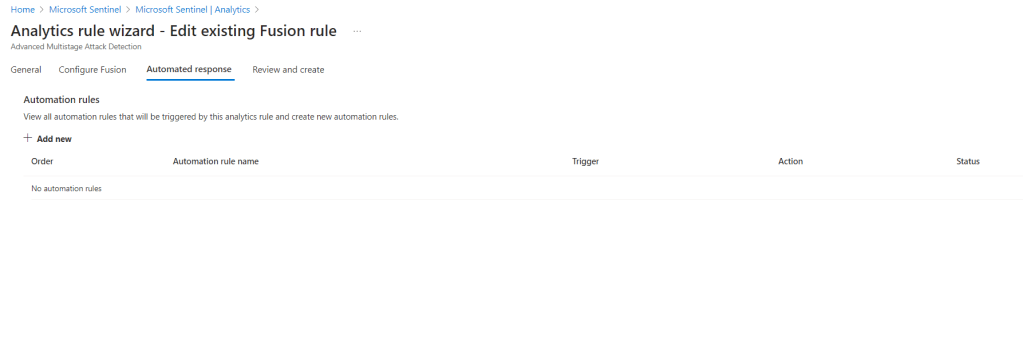
You can check its dependency by editing the rule and check for any automated response rules. This will definitely help you to find the dependency and make adjustment to your automated response rules.
If your analytics rules are more than your automated response rules, you can search the dependency based on automated response.

If you have playbook running on the automated responses rule that has dependency with the analytics rule too, should also identify the dependency within the playbook design.

If you would like to know more about detecting threats using the templates that are already given by Microsoft Sentinel, feel free to review the references below. With templates given really ease your effort of creating custom rules and troubleshooting it.

Have the deprecated rules in the workspace still running, you won’t be able to receive alerts and your automation rules will not perform as it should be too.

References:

  1. https://learn.microsoft.com/en-us/azure/sentinel/detect-threats-built-in

CheckPoint Firewall & Microsoft Sentinel: Troubleshoot Data Connector Disconnected

Hi everyone, hope you guys are staying safe and keep yourself healthy. Would like to share you another troubleshooting experience of mine.

I noticed that the CheckPoint connection status was disconnected from the data connector in Microsoft Sentinel portal. Hence, I put on my thinking hat to troubleshoot this issue. It was tricky though but luckily the troubleshooting command manage to give me some hints, what was causing this disconnection.

My findings were:

  1. Syslog connector still exist
  2. CheckPoint Firewall forwarder connector was not found

I proceed my next action on troubleshooting it,

  1. I ran the troubleshooting command from the Microsoft Sentinel data connector for CheckPoint in the Syslog connector VM (Centos)
  2. It shows me that I need to change my Syslog’s SELinux mode to permissive
  3. To modify the SELinux mode run the following command, this is where the mode located, is inside the directory/file below “/etc/selinux/config”:
    • vi /etc/selinux/config
  4. Change the SELINUX=enforce to SELINUX=permissive
  5. Click the button “ESC” on your keyboard
  6. Type the command to save and quit: wq!
  7. Click the button “ENTER” on your keyboard
  8. Restart the VM by typing the command sudo reboot

First issue completed but there was a second issue prompt, it mentions that it would require me to disable auto-sync to prevent duplicate records sync to Microsoft Sentinel. Hence, the next action is below,

  1. Type the following command sudo su omsagent -c 'python2 /opt/microsoft/omsconfig/Sripts/OMS_MetaConfigHelper.py --disable'
  2. Restart the VM by typing the command sudo reboot

You might not like my idea of rebooting the Syslog connector VM, no worries you can proceed to follow just by restarting the service instead.

Noted:

Kindly note that the command above may not suit your situation because different Linux Operating System has their own command language. Anyway, the concept is pretty common sense.

References:

  1. https://access.redhat.com/documentation/en-us/red_hat_enterprise_linux/8/html/using_selinux/changing-selinux-states-and-modes_using-selinux
  2. https://learn.microsoft.com/en-us/azure/sentinel/troubleshooting-cef-syslog?tabs=cef

Azure AD Connect: Reminder All version 1.x is Retiring this August, 2022

Hi fellow friends, hope you guys are having a good day today, everyday is a brand new day.

Today’s article here is to remind you that the Azure AD Connect all version 1 will be expiring soon, on 31st August 2022, this year this month.

What happen if you don’t upgrade before the due date?

Basically you will face service disruption such as accounts, computers objects and passwords will be affected.

Accounts/User objects:
– New users created in Active Directory will no longer synchronized to Microsoft 365 cloud

– New values added into the accounts/user will no longer reflecting the updates/changes into your Microsoft 365 cloud

– Basically any changes you make towards the accounts/user that you would like to sync to Microsoft 365 would not allowed

Computer objects:

– If your environment has Microsoft Intune or Hybrid join devices then you will have issue onboarding new devices to Microsoft Intune

Passwords:

– If your environment allow users to reset their own password from Microsoft 365 and synchronized back the new password to the Active directory would not be not allowed

– This is affecting the environment that has password writeback feature enabled in the Azure AD Connect

Any concerns should I take in for the current configuration before upgrading?

  1. Remember your Microsoft 365 global administrator credential, because you are require to re-establish the connection when you are performing an upgrade of the Azure AD Connect
  2. Make sure your server’s storage, Operating System and RAM size is still following the best practice
  3. Make sure you are following the new version of Azure AD Connects prerequisite

References:

  1. https://docs.microsoft.com/en-us/azure/active-directory/hybrid/reference-connect-version-history#retiring-azure-ad-connect-1x-versions

Microsoft Sentinel: Things to know before you start migrate to a new resource group in the same tenant

Good morning fellow friends. Hope you are having a fresh start of the day. I would like to write about my journey on Microsoft Sentinel during migration phase.

Microsoft Sentinel is SIEM and SOAR security solution providing corporate the flexibility and better visibility in terms of managing security logs from Microsoft security products and third-party products and threats prevention.

Let’s begin…

Current situation of what I have in my Microsoft Sentinel is,

  1. Solution running on a trial subscription
  2. Resource group 1
  3. Some queries
  4. Some connectors (Microsoft and third-party)
  5. Some Logic app
  6. Some Automation rules

I would like to migrate from the trial subscription to the CSP subscription, this migration would likely be perform by your license provider and request them to provide the appropriate permission so that you can perform your management on the Microsoft Sentinel in the new subscription.

Note: This is not migrating from one tenant to another tenant.

The highlighted in RED are the ones you would need to perform backup, making sure the connection is up and the authentication is establish.

The New resource group has the current resource group resources,

  1. Solution is now running on paid subscription
  2. Resource group 2 (You would need to create a new resource group)
  3. Some queries (Custom queries needs to be regenerate)
  4. Some connectors (Make sure connectors with log forwarder is working else you would have to reestablish)
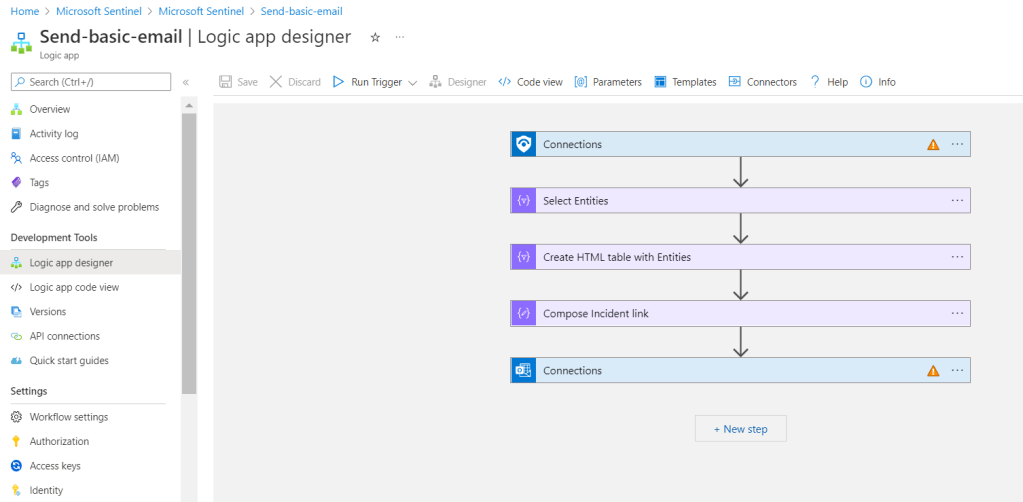
  5. Some Logic app (Reauthenticate your log workflow)
  6. Some Automation rules
Example of warning in Logic app designer

That is all you would need to know in advance before you start your migration. Hopefully you would find this article knowledgeable for you if you are heading to migrating your Microsoft Sentinel to a new subscription. Is never a waste of time if you are used to double checking or triple checking that all the resources are connecting and working well after migrated.

References:

  1. https://docs.microsoft.com/en-us/azure/azure-resource-manager/management/move-resource-group-and-subscription

Azure: Troubleshoot Azure Information Protection installer via Intune

What’s up ladies and dudes!

Today’s topic is about the Azure Information Protection installer, yes is the MSI installer, AzInfoProtection_UL.msi.

Every MSI application you would need to use this following command to install them into the machine “msiexec /i <application name> /quiet“, but somehow for this case YOU DON’T NEED IT!

Basically you would just leave the command-line arguments empty.

References:

  1. https://www.microsoft.com/en-us/download/details.aspx?id=53018

Azure: Troubleshooting Conditional Access App Control for iOS

Good day everyone. Even with the Covid-19 is rising drastically in Malaysia, kind of brings my hopes down. Anyway, I still have to keep going with life.

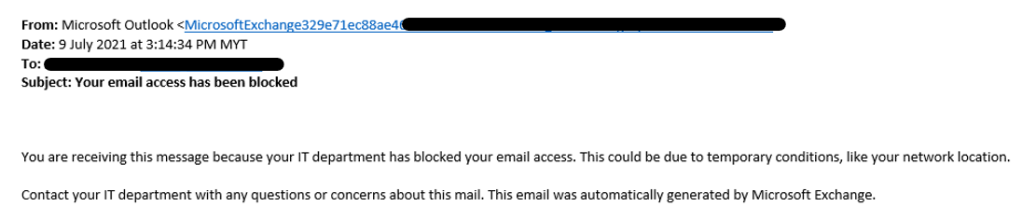
Today’s topic is about the Azure’s conditional access policy. We found a bug in conditional access for iOS device platform. So basically our situation is that, if we would need the conditional app control to be functioning in the Cloud App Security, we would need to setup a conditional access policy. Our setup was only to achieve monitoring mode only. However, after enabling the policy we retrieve reports saying that all iOS devices are having trouble accessing their exchange online. Users are receiving an email notification, stating that their exchange online access is being blocked. We had to disable the policy temporary to troubleshoot it.

This was the email notification:

No Exchange Server, just Exchange Online
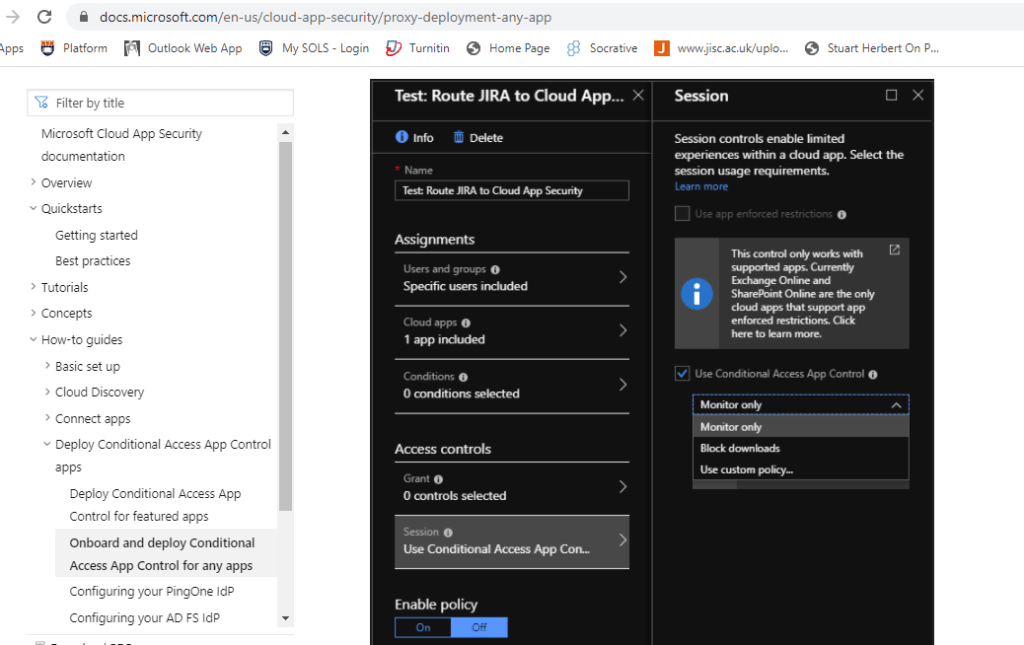
  • This was our configuration for the conditional access policy;
    • Assignment: Include a test group, Exclude the VIP accounts
    • Cloud apps: All cloud apps
    • Conditions: None
    • Session: Use conditional app control (Monitor Only)

So this is the Microsoft article shows how the configuration/enablement is being setup in the conditional access in order for the app control to work, as you can see there weren’t any conditions being setup. Hence, it should not be doing any requirements checking or blocking.

There are not enough explanation
As you can see the condition shows zero

To be honest, I had raise ticket to MCAS, Exchange Online and Azure team, and none of them able to get back to me an answers. MCAS team state that “no conditions are setup it SHOULD NOT be performing blocking”.

I had to stop relying the Microsoft Support for this case, as I had to find a way to identify it. So based on the image above, we can see that the article is not mature enough, because there weren’t any solid references or notes stating the limitations/restriction of monitor only of conditional app control.

Upon further checking, I had to analyze the logs of Azure Sign-in activity and Cloud App Security Activity log of that user whom experience the issue. We notice that the sign-in was shown as “Interrupted” and there was no failure sign in status. For your information, the iOS version is 14.

Error code 1: This is not an error – this is an interrupt that triggers device authentication when required due to a Conditional Access policy or because the application or resource requested the device ID in a token. This code alone does not indicate a failure on your users part to sign in. The sign in logs may indicate that the device authentication challenge was passed succesfully or failed.

Error code 2 : This is an expected part of the login flow, where a user is asked if they want to remain signed into this browser to make further logins easier. For more details, see https://techcommunity.microsoft.com/t5/Azure-Active-Directory/The-new-Azure-AD-sign-in-and-Keep-me-signed-in-experiences/td-p/128267

Error code 3: 50097

Another finding was that there weren’t any Exchange mobile device access policy/rules being configure to perform the blocking.

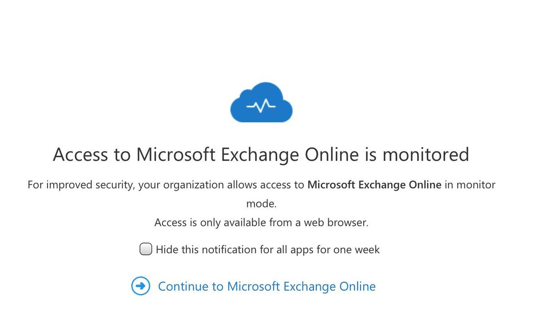
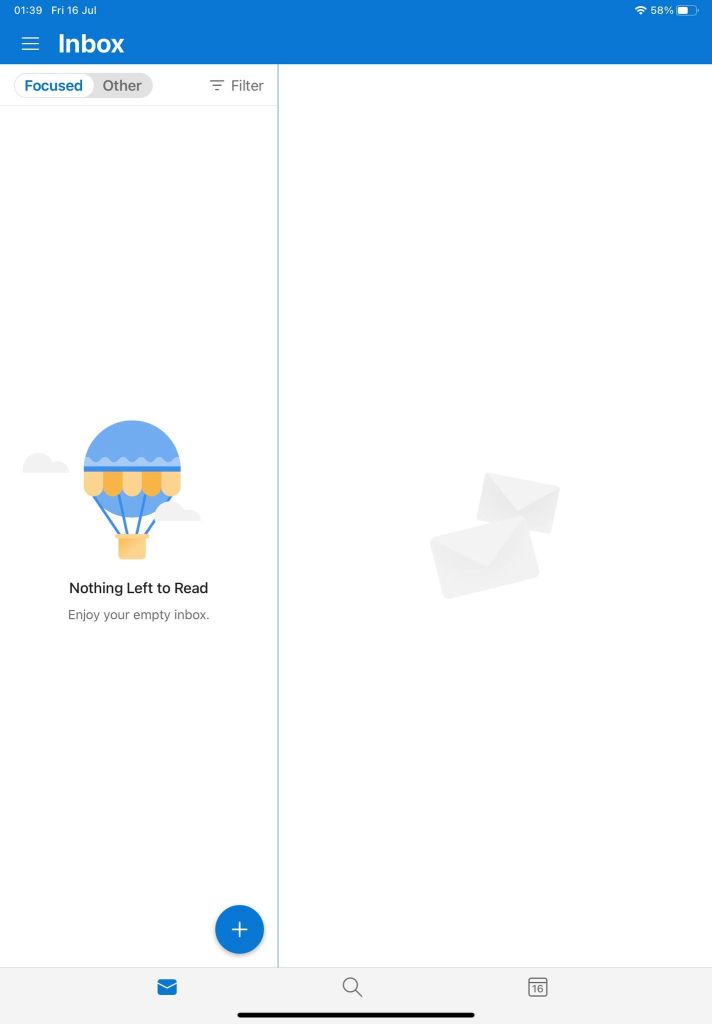
I do know that once this conditional app control is enabled there will have this prompt page before entering into the Exchange online, this is my iPad Air by the way, running on the latest version. The prompt page can be turn off though. Anyway, that is not the case here. I ran a test to mimic the situation but I didn’t experience any email notification send to me stating my exchange online access is being blocked. There is no MFA or Biometric setup on my iPad.

The questions still lies is there a pre-requisites for iOS devices for conditional access policy, even though there is no conditions being set?

Below is image from web browser;

Below image from my iOS outlook app;

Azure ATP: How to Remediate Enumeration activities or other attacks?

Hey every good evening, and hope you guys are having a nice day today. Just another topic about Azure ATP here, a.k.a Microsoft Defender for Identity.

If you come across this before and then you would already know what is it for. If you are new here, then let’s just have a brief explanation what is it about. Azure ATP is basically a cloud-service that leverages your on-premises to perform identifying, detection and monitoring of your domain controller’s user objects activities and behaviors.

Newly deploy Azure ATP in your environment would take 48 hours to 72 hours for the Azure ATP to study the behaviors of each accounts, but this is also depend how large is your objects in your environment.

Anyway, a bit of side track just now. This blog post objective here is that if you ever encounter the 5 types of attacks, Reconnaissance, Compromised credentials, lateral movements, domain dominance and exfiltration alerts from the Azure ATP.

You may refer to this link here to learn how to remediate and understand how to manage the alerts.

Azure ATP: Does Admin’s actions recorded by Office 365 Audit?

Hey everyone, hope you guys are having a nice evening. Today’s blog post is about Azure ATP and Office 365 audit.

So the situation is like this;

Majority Office 365 tenant has more then 1 global administrators. Whenever, a global administrator would like to capture other administrators actions, they would query those events from Office 365 audit. So for Azure ATP, I notice it is not available in Office 365 audit, but for Defender Endpoint it exist in the audit. Summary, you can’t audit actions being taken in Azure ATP portal.

Scenario: If a global administrator, deletes an alerts from Azure ATP, it would remain deleted and there is no recycle bin to restore the alert back unless you regenerate the same situation to trigger the detection. This delete action is not recorded into the Office 365 audit.

Office 365 audit
Azure ATP on deleted alerts

I do not see this as a show stopper, I am still testing other ways to get this working. Stay tune…

References:

  1. https://docs.microsoft.com/en-us/defender-for-identity/working-with-suspicious-activities
  2. Search the audit log in the Security & Compliance Center – Microsoft 365 Compliance | Microsoft Docs
  3. DefenderATP Audit logs – Microsoft Tech Community

Azure ATP: What is the Retention Period of Reports?

Hey Hey everyone, good morning, is Saturday here in Malaysia. Hope you guys are doing well. This week blog post is about another Microsoft Defender for Identity, a.k.a Azure ATP. The terms are up to your suit and understanding.

I think is very reasonable to know what is the retention period that the Azure ATP’s Reports. Why? Because of Auditors

Upon researching to gather articles from Microsoft site and there weren’t an article talking about how long the reports store in Azure ATP. I do know that the reports in Microsoft security max are either 30, 60 or 90 days.

Thus, I had to raised a case to Microsoft Support and they return the answer that the retention period is 180 days. I did request whether they were able to locate any article from Microsoft that state it but none.

To locate Reports in Azure ATP, simply go to https://portal.atp.azure.com , select the 2nd Icon on the left taskbar.