DigiCert: Regenerate Certificate Signing Request (CSR) from Windows

Hi everyone, hope you guys are staying healthy and safe. I’m here to write about steps on regenerate certificate and its keys using the DigiCert. Anyone here uses DigiCert TLS/SSL for Windows this post will be helpful for you.

Anyway, if you’re new to certificates just a few tips for you to get the concept understand,

  1. Organization uses certificates because of internal/in-house applications.
  2. Certificates authorization dependent to the keys that you generated.
  3. The keys are dependent to where you generate it (Meaning which server/PC, yes it dependent highly on it).
  4. Keys are secure communication, allowing certificate authorization to have secure connection.
  5. Professionals would prefer to generate from the server level because you don’t often make changes towards server hostname or IP addresses, compared to PC.
  6. Some certificate products will notify you a month before your certificate expire. But please note, expired certificate will cause a Severity A or B impact (depending on your in-house application purposes (Production, DR or UAT)).

*Note: Make sure you are generating NOT from a consolidate server environment.

Ok, let’s start with the steps.

Step-by-step instructions

  1. Make sure your server that you choose to perform the activity doesn’t have any schedule for force shutdown, restart or update. Hence, it will not disturb your activity.
  2. You would have to login your administrator portal of DigiCert > Download the generator app from the right domain certificate > Download into the server > Install the DigiCert app.
  3. You are not requiring restarting your server after installing the DigiCert app.
  4. Launch the app > Select SSL > Select Create CSR > Select SSL > Fill in the blank boxes, and make sure that are same as from DigiCert portal because its case sensitive. Key Size you can choose the highest bit.
  5. Next, Copy the certificate to a notepad or save it to a file (On the server that you had generated)

Is better to remember which server you had generate the CSR. This will help you later to your goal on generating the SSL.

References:

  1. https://www.digicert.com/kb/util/csr-creation-microsoft-servers-using-digicert-utility.htm
  2. https://www.digicert.com/StaticFiles/DigiCertUtil.exe
  3. https://www.digicert.com/kb/util/ssl-certificate-installation-using-digicert-utility-for-microsoft-servers.htm

Microsoft Certificate Authority: Submit subordinate certificate request for Firewall’s SSL

Hi guys hope you are doing well, today I’m about to share you one of my experiences with a customer’s certificate expired.

How to know that it has expired?

  1. Unable to load the website via internal network and external network
  2. Website load during internal network was intermittent at first than it stops load
  3. Application/developer has made changes or haven’t update the certificate at their end
  4. In Fortigate Firewall websites > System > Certificates > There will have list of certificates and if you look on your right there should have the status of the certificate showing “Valid” or not

Checking the dependency for certificate too.

Above is a sample of the issue when you try to load one of your company websites or application website.

For this situation, it was half. Meaning, application/developer forgotten to update the certificate at their code. Another half was the certificate require to be update into the firewall.

Solution

  1. Login to Fortigate firewall website
  2. Select System > Certificates > Generate CSR cert > Save the CSR cert into
  3. Copy the CSR file > Paste into your Microsoft Certificate Authority Server
  4. Launch your Certificate Authority via Browser > type the link with this “FQDN domain name/certsrv” > Login with on-premise AD administrator credential > Request a certificate
    • Example contoso.com/certsrv

5. Select Advanced Certificate Request

6. Open the CSR file > Copy the content inside > Paste into the Saved Request> Choose template type to Subordinate > Submit

7. Download the DER copy of the cert

8. Go back to Fortigate firewall website > System > Certificates > Import > Local certificates > Upload > DER file

9. Update the relevance security profile of SSL to this new cert

If you have a different firewall, you will have to search for the firewall’s model guide. Anyway, understanding the concept first is the most important phase for troubleshooting every issue.

Meanwhile, if you’re interested to setup a Certificate Authority environment feel free to reach out to the references below.

References:

  1. https://learn.microsoft.com/en-us/windows-server/networking/core-network-guide/cncg/server-certs/install-the-certification-authority

Microsoft Sentinel: What to do with Deprecated Analytics Rule

Hi guys hope you all are having a great weekend. I just wanted to share about the deprecated analytics rule that is in Microsoft Sentinel. You should be able to find deprecated rules from your active rules in Analytics.

How should you remove them? When will it impact? What can I do? Who will it get impacted? Where can I find the dependency?

Steps to Remove

  • If you only have just a few of them > To remove them from active rules > is by checking its checkbox > Select Delete on the top taskbar.
  • If you have alot of them > To remove them from active rules > is by checking the bulk checkbox > Select Delete on the top taskbar

Steps to Find Dependency

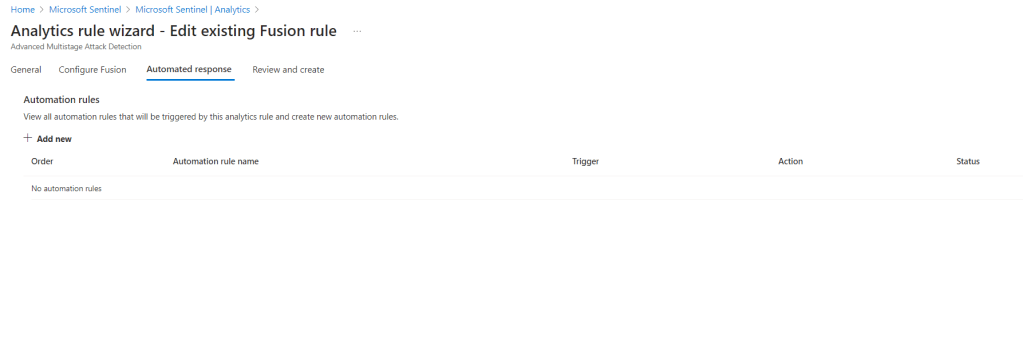
You can check its dependency by editing the rule and check for any automated response rules. This will definitely help you to find the dependency and make adjustment to your automated response rules.
If your analytics rules are more than your automated response rules, you can search the dependency based on automated response.

If you have playbook running on the automated responses rule that has dependency with the analytics rule too, should also identify the dependency within the playbook design.

If you would like to know more about detecting threats using the templates that are already given by Microsoft Sentinel, feel free to review the references below. With templates given really ease your effort of creating custom rules and troubleshooting it.

Have the deprecated rules in the workspace still running, you won’t be able to receive alerts and your automation rules will not perform as it should be too.

References:

  1. https://learn.microsoft.com/en-us/azure/sentinel/detect-threats-built-in

Active Directory: Logon script not working on user device when its inside (FQDN domain name\NETLOGON folder)

Hi everyone, hope you guys are taking care of yourself. Meanwhile, I’m not really in a great mood today, as there were some conflicts at work, well that’s what happen when you got to deal with humans right? Pretty normal, I guess.

Anyway, I still wanted to write a post about the experience I had today, and it did take me sometime to realized that there was something in between the user’s laptops/desktop and Active Directory that was causing the script unable to ran. Anyway, the environment did not have anyone who is technical but is still not easy to troubleshoot a problem when non-technical users only give you less than an hour to find out what is the problem. Luckily, I did meet someone who knows well enough the infrastructure of the environment….

I understand that the politics are so strong between parent companies and branches, but we all have a life to move on, so politics are just excuses to delay tasks or projects to complete. We are all being paid to do tasks, not to spend 8 working hours to gossip and drill down other’s conflicts.

So, enough of chit chat corporate news.

I realized that deploying logon batch file script via Group Policy Object wasn’t working (The script is located the SYSLOG\LOGON folder and FQDN domain name\NETLOGON folder), same goes with AD’s user object’s profile > Logon Script (The batch script is located in the FQDN domain name\NETLOGON folder) and using the Driver mapping feature inside GPO too.

I thought at first it could be my scripting issue but somehow double clicking the batch file script directly onto the user’s device it works. So, I started to think what could be in between the user’s device and active directory. Is it firewall? Is it Microsoft Defender? After clicking the user’s device network settings and realized they have Zscaler product installed.

Zscaler Proxy, where there were policy preventing any remote script running on user’s device. This logon script was to map share drive automatically on the user’s device. During their first practice of how to map drive was to manually map them on their own.

Well, Zscaler was beyond my scope. I don’t have the rights to request the environment to whitelist a script. I can only find out and advise them whether they still want it.

In the end, they told me to just leave the script as a backup for the user.

If you try to search for an answer, there won’t have any on the internet. It was all based on your troubleshooting skillset.

CheckPoint Firewall & Microsoft Sentinel: Troubleshoot Data Connector Disconnected

Hi everyone, hope you guys are staying safe and keep yourself healthy. Would like to share you another troubleshooting experience of mine.

I noticed that the CheckPoint connection status was disconnected from the data connector in Microsoft Sentinel portal. Hence, I put on my thinking hat to troubleshoot this issue. It was tricky though but luckily the troubleshooting command manage to give me some hints, what was causing this disconnection.

My findings were:

  1. Syslog connector still exist
  2. CheckPoint Firewall forwarder connector was not found

I proceed my next action on troubleshooting it,

  1. I ran the troubleshooting command from the Microsoft Sentinel data connector for CheckPoint in the Syslog connector VM (Centos)
  2. It shows me that I need to change my Syslog’s SELinux mode to permissive
  3. To modify the SELinux mode run the following command, this is where the mode located, is inside the directory/file below “/etc/selinux/config”:
    • vi /etc/selinux/config
  4. Change the SELINUX=enforce to SELINUX=permissive
  5. Click the button “ESC” on your keyboard
  6. Type the command to save and quit: wq!
  7. Click the button “ENTER” on your keyboard
  8. Restart the VM by typing the command sudo reboot

First issue completed but there was a second issue prompt, it mentions that it would require me to disable auto-sync to prevent duplicate records sync to Microsoft Sentinel. Hence, the next action is below,

  1. Type the following command sudo su omsagent -c 'python2 /opt/microsoft/omsconfig/Sripts/OMS_MetaConfigHelper.py --disable'
  2. Restart the VM by typing the command sudo reboot

You might not like my idea of rebooting the Syslog connector VM, no worries you can proceed to follow just by restarting the service instead.

Noted:

Kindly note that the command above may not suit your situation because different Linux Operating System has their own command language. Anyway, the concept is pretty common sense.

References:

  1. https://access.redhat.com/documentation/en-us/red_hat_enterprise_linux/8/html/using_selinux/changing-selinux-states-and-modes_using-selinux
  2. https://learn.microsoft.com/en-us/azure/sentinel/troubleshooting-cef-syslog?tabs=cef

Windows Server Update Services: Troubleshoot the Tools folder is missing

Hi everyone. Hope you guys did enjoy your weekend. I would like to bring to you on troubleshooting some missing folders or its contents in Windows Server Update Services (WSUS).

Usually, you would face such situation is when you are in the progress of reinstall the WSUS, and you notice that the “Tools” folder is missing. This tools folder you would find it at C:\Program Files\UpdateServices. What’s inside that folder is the WSUS execution file, wsusutil.exe. Without this file you can run any WSUS services.

There might be more problems that you would face during reinstalling of WSUS. Above is only one of the problem that you may face.

One of the symptoms to know whether the Tools folder is missing is when you tried to run the Post-Install of the WSUS, you will end up with error, unable to proceed the Post-Install.

Solution

  1. On the WSUS server > Launch Command Prompt as Administrator
  2. Type the following command fsc /scannow
  3. This command is used to scan the System Files and recover the missing files
  4. Then run a reboot on the server
  5. Check back the folder existence, it should be recovered

References:
1. https://social.technet.microsoft.com/Forums/windowsserver/en-US/509b5daf-6246-4f14-9ebd-c88c8967dd34/wsus-2012-tools-directory-missing

Active Directory: Why You Should Not Use Default Domain Policy as your Password Management?

Hi fellow friends! Hope you guys are healthy and staying safe. Today’s topic is about Active Directory on-premises.

Why are there default domain policy and default domain controllers’ policy? Is it for me to use it? Can I alter it?

There are still people recommend using default policies. However, what will happen afterwards no one care to know about it.

“What’s the implications?”

“Why can’t I use default policies?”

I do faced challenges when people are telling me “I have been using a separate group policy to manage password and it works.”. To me just saying is just prove nothing. To prove your point, is using Lab environment.

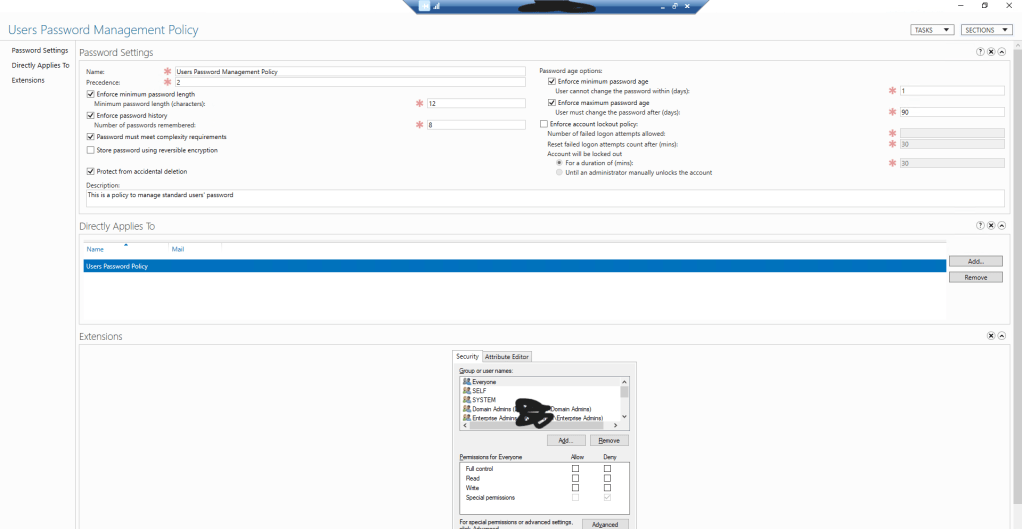
Using group policy to manage different password is not supported, because whatever policy that you created under the child layer/level it will be overwritten by the default policies. Hence, no point.

Based on Microsoft recommendation, any default policy coming from Active Directory, should not be modify or you can keep the modification to minimum, such as enable more audit features. Active Directory is sensitive. Anything that is default remains default.

I would recommend using the Fine-Grained Password Policy and/or the LAPS for password management. LAPS has been around for quite some time and Fine-Grained Password too but there are still people not aware about this feature from Active Directory.

Fine-Grained Password policy is great, when you have multiple groups of people/administrators you would want to control their password requirements. However, each policy you created in the Fine-Grained Password, it follows based on the priority level, you would need to take note on it. Keep it minimum on the policies.

Not all domain/forest functional levels support this feature of fine-grained password policy. You can refer back to the articles I have in here at the references, below.

References:

  1. https://learn.microsoft.com/en-us/windows-server/identity/ad-ds/get-started/adac/introduction-to-active-directory-administrative-center-enhancements–level-100-
  2. https://learn.microsoft.com/en-us/windows/security/threat-protection/security-policy-settings/password-policy

Microsoft Exchange: Unable to export Exchange attributes (MxExchArchiveGUID) from Active Directory after shut down

Hi everyone, has been awhile, due to Chinese New Year. Anyway, is good to be back!

Situation for this issue, is that you have shut down the Microsoft Exchange server and you are in the process of rebranding (Example, changing UPN, email address or Logon), but you encounter that some users having the issue to open their online archiving. Hence, you would like to export their MsExchArchiveGUID from Active Directory and perform a comparison with the Cloud’s Archive GUID instead of turning on the Exchange Server (You do not want to make your effort redundant). However, no matter how you try with this command on your Active Directory, Get-ADUser -Filter * -Properties * | Export-csv filename.csv and you still can’t get them to show up on your csv file.

This article would require review of the reference links.

Don’t panic! All you got to do is:

  1. Prepare a test PC (OS version of Windows 10 at least) or a server (Non-critical ones, OS version of Windows Server 2012 R2) that is a domain joined
    • I would recommend using a test PC, to avoid the hassle of checking whether the Windows Server is critical or notor the hassle of stuck at Exchange Server Wizard (Role Selections)
  2. Prepare an account that has a domain admin rights.
  3. Make sure you know what your Exchange Server’s version (Example, CU 2013, CU 2010, CU 2016, or CU 2019).
    • If you don’t remember you can always relocate the Exchange Server’s object from your AD. Else, you have to guess.
  4. Logon the PC with the account that has domain admin rights > Install the RSAT tool onto the PC
    • Recommended RSAT tools are: Active Directory Domain Services and Lightweight Directory Services Tools, and Server Manager
  5. Install IIS 6 Metabase Compatibility and IIS 6 Management Console
  6. Reboot the PC
  7. Relogin to the PC with the account that you had logon too, go to browser and search for your Exchange Server CU version and then download the package
  8. Export/eject the .iso file, run the Setup.exe
  9. Choose the option of not to allow windows update > Next
  10. Agree the license agreement > Next
  11. On Recommended setting page > Choose recommended or not.
  12. On the Server role Selection > Choose only Management tools > Next
  13. Location of the installation you can remain with the default
  14. On Checking the prerequisites page, if you faced any of these errors just follow the instructions on how to resolve them or Google Search how to do it based on your PC’s OS version.
  15. Once you have successfully downloaded the exchange management tool you can start to export your msExchArchiveGUID
  16. Once finish remember to revert you configuration to the PC

References:

  1. https://learn.microsoft.com/en-us/exchange/install-exchange-2013-using-the-setup-wizard-exchange-2013-help
  2. https://learn.microsoft.com/en-us/exchange/iis-6-compatibility-components-not-installed-longhorniis6mgmtconsolenotinstalled-exchange-2013-help
  3. https://learn.microsoft.com/en-us/powershell/exchange/filter-properties?view=exchange-ps#archiveguid