DigiCert: Regenerate Certificate Signing Request (CSR) from Windows

Hi everyone, hope you guys are staying healthy and safe. I’m here to write about steps on regenerate certificate and its keys using the DigiCert. Anyone here uses DigiCert TLS/SSL for Windows this post will be helpful for you.

Anyway, if you’re new to certificates just a few tips for you to get the concept understand,

  1. Organization uses certificates because of internal/in-house applications.
  2. Certificates authorization dependent to the keys that you generated.
  3. The keys are dependent to where you generate it (Meaning which server/PC, yes it dependent highly on it).
  4. Keys are secure communication, allowing certificate authorization to have secure connection.
  5. Professionals would prefer to generate from the server level because you don’t often make changes towards server hostname or IP addresses, compared to PC.
  6. Some certificate products will notify you a month before your certificate expire. But please note, expired certificate will cause a Severity A or B impact (depending on your in-house application purposes (Production, DR or UAT)).

*Note: Make sure you are generating NOT from a consolidate server environment.

Ok, let’s start with the steps.

Step-by-step instructions

  1. Make sure your server that you choose to perform the activity doesn’t have any schedule for force shutdown, restart or update. Hence, it will not disturb your activity.
  2. You would have to login your administrator portal of DigiCert > Download the generator app from the right domain certificate > Download into the server > Install the DigiCert app.
  3. You are not requiring restarting your server after installing the DigiCert app.
  4. Launch the app > Select SSL > Select Create CSR > Select SSL > Fill in the blank boxes, and make sure that are same as from DigiCert portal because its case sensitive. Key Size you can choose the highest bit.
  5. Next, Copy the certificate to a notepad or save it to a file (On the server that you had generated)

Is better to remember which server you had generate the CSR. This will help you later to your goal on generating the SSL.

References:

  1. https://www.digicert.com/kb/util/csr-creation-microsoft-servers-using-digicert-utility.htm
  2. https://www.digicert.com/StaticFiles/DigiCertUtil.exe
  3. https://www.digicert.com/kb/util/ssl-certificate-installation-using-digicert-utility-for-microsoft-servers.htm

Microsoft Certificate Authority: Submit subordinate certificate request for Firewall’s SSL

Hi guys hope you are doing well, today I’m about to share you one of my experiences with a customer’s certificate expired.

How to know that it has expired?

  1. Unable to load the website via internal network and external network
  2. Website load during internal network was intermittent at first than it stops load
  3. Application/developer has made changes or haven’t update the certificate at their end
  4. In Fortigate Firewall websites > System > Certificates > There will have list of certificates and if you look on your right there should have the status of the certificate showing “Valid” or not

Checking the dependency for certificate too.

Above is a sample of the issue when you try to load one of your company websites or application website.

For this situation, it was half. Meaning, application/developer forgotten to update the certificate at their code. Another half was the certificate require to be update into the firewall.

Solution

  1. Login to Fortigate firewall website
  2. Select System > Certificates > Generate CSR cert > Save the CSR cert into
  3. Copy the CSR file > Paste into your Microsoft Certificate Authority Server
  4. Launch your Certificate Authority via Browser > type the link with this “FQDN domain name/certsrv” > Login with on-premise AD administrator credential > Request a certificate
    • Example contoso.com/certsrv

5. Select Advanced Certificate Request

6. Open the CSR file > Copy the content inside > Paste into the Saved Request> Choose template type to Subordinate > Submit

7. Download the DER copy of the cert

8. Go back to Fortigate firewall website > System > Certificates > Import > Local certificates > Upload > DER file

9. Update the relevance security profile of SSL to this new cert

If you have a different firewall, you will have to search for the firewall’s model guide. Anyway, understanding the concept first is the most important phase for troubleshooting every issue.

Meanwhile, if you’re interested to setup a Certificate Authority environment feel free to reach out to the references below.

References:

  1. https://learn.microsoft.com/en-us/windows-server/networking/core-network-guide/cncg/server-certs/install-the-certification-authority

Active Directory: Setup Multiple Enterprise Root Certificate Authority in a Single Forest For Zero Downtime

Hey guys and girls, how are you all doing working from home? Please stay safe and keep your distance.

Today’s topic is about creating multiple root certificate in a single forest, please take note that this is not a best practice by Microsoft but it was the right solutions for my situations. There will not be errors/stopping you to proceed, if you setup multiple root certificate authority.

So basically I have this tested on my lab only I proceed into production. Whenever you aren’t confident about the solutions please always run your lab. Don’t give people heart attack. Active Directory is a sensitive being.

My situation is that we have existing Windows Server 2008 R2 and is moving to Windows Server 2019, currently there is a root certificate authority siting in Windows Server 2008 R2 and would like to transition to Windows Server 2019 without downtime. Hence, Migrating is not the right word for this situation, because Migration required downtime. Imagine people working from home unable to VPN access into the work environment. You will get the scream and shout by them, Good Luck.

For having a multiple root CA, so that at the network layer/firewall layer, the network administrator can create another certificate access for user to VPN access using either the old Root CA or new Root CA. Hence, zero downtime.

Step by Step:

  1. You have to add the roles and feature into your Windows Server 2019
  2. Once you have the role installed and the configuration setup (just follow the default configuration, please choose Enterprise Root CA)
  3. Make sure your instance naming or certificate authority name is not duplicated with your other certificate authority server name
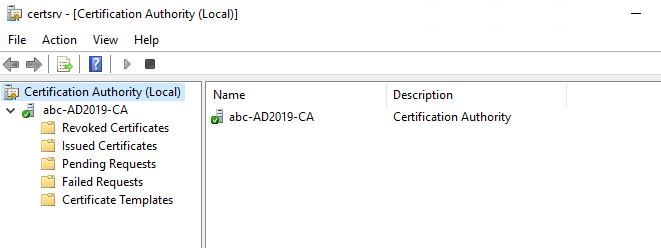
  4. This is the result of successful setup of the certificate authority
  5. So now you got to make sure the certificate authority server has its certificate propagate on its local machine too
  6. Launch Start > Run > mmc
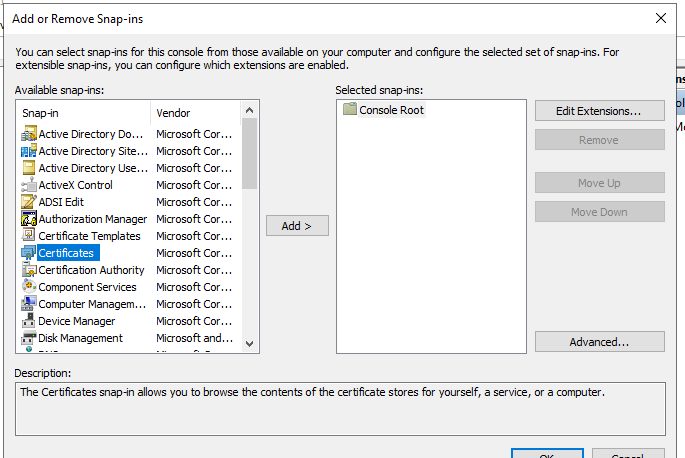
  7. MMC > File > Add/Remove Snap-in… > Certificates
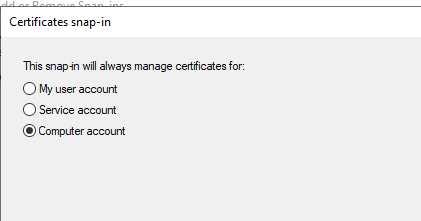
  8. Certificates > Computer account > Local computer > Finish
  9. Certificates (Local Computer) > Expand the folder > Personal > Certificates
  10. Certificates (Local Computer) > Expand the folder > Trusted Root Certification Authorities > Certificates
  11. Because now the forest has 2 Root CA, so your trusted root CA folder would have 2 Root CA certificate
  12. To export the new root CA certificate to your network administrator, Launch your command prompt on the Root CA server > run the following command
    • certutil -ca.cert <filename>.cer
  13. To allow the other server members of the forest, please access to the server and follow step 6 to step 9, remove the old Root CA
  14. Then run a gpupdate /force command line > Reboot the server, to have the changes reflected
  15. Perform a checking whether the changes has reflected to the other server(s) after performing step 13 to 14, please access to their local computer certificate and check. Repeat step 6 to step 10.

*Note:

  1. Do not export the Root CA certificate and import to the servers, because this would beat the purpose Enterprise Root Certificate Authority
  2. If you have a larger environment it would take awhile for the change to replicate. Hence, continue the gpupdate /force until you receive the result you wanted on the server